
Connecting your own apps with the Public API
For Admins and Super Admins. Create a custom app to connect your own tools to SparrowCRM through the Public API. Each app gets a client secret and only the access you give it.
If you're a rep, your admin can create an app for you.
Create a custom app
- Go to Settings > Integrations and open the Custom apps tab.
- Click Create app.
- Enter an App name and, optionally, a Short description.
- Under Scopes, choose what the app can do with each type of data (see below). Give it at least one permission.
- Click Create app.
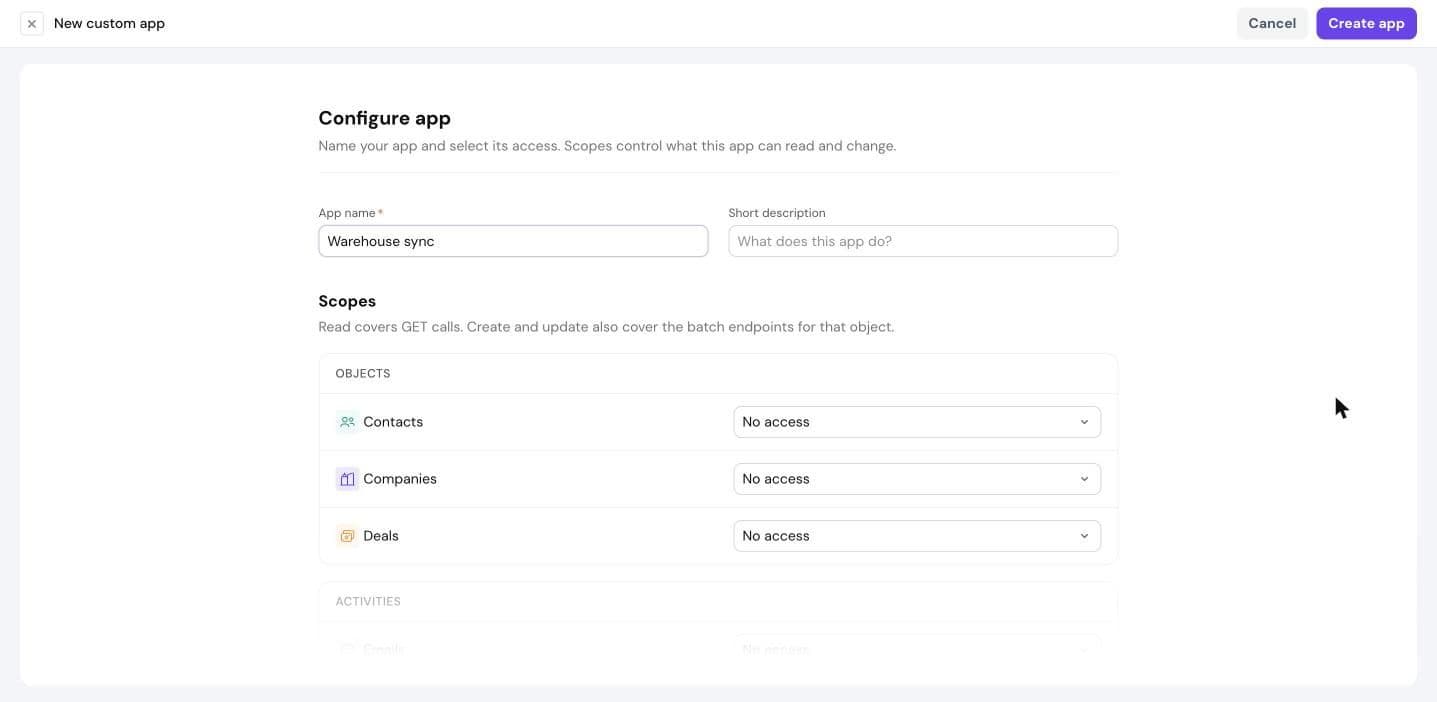
Choose scopes
Scopes control what the app can read and change. Set them for:
- Objects: Contacts, Companies, Deals
- Activities: Emails, Meetings, Calls, Notes, Tasks
For each one, choose No access, Full access, or any of Read, Create and Update (for example, contacts.read). Read covers GET calls. Create and Update also cover the batch endpoints for that object.
Give each app only the access it needs.
Connect your app
After you create the app, its Connection tab shows:
- API base URL:
https://api.sparrowcrm.com/api/v1 - Client secret: click the copy icon to copy it.
The client secret is shown only once. After you leave the page it stays hidden, but you can still copy it. Store it safely and don't share it.
Edit or delete an app
Open the app from the Custom apps tab:
- The Scopes tab shows its current access.
- Click ⋮ > Edit app to change its name, description or scopes.
- Click ⋮ > Delete app, or Delete app at the bottom of the page, then confirm. Deleting is permanent and all API calls from the app stop working.
Was this helpful?