
Working with records
Contacts, companies, deals and custom objects all work the same way. This article covers the actions you can take on any record: opening and editing it, taking action from it, updating many records at once, and deleting or restoring records.
Open a record
- Click a record's name in the list to open its record page.
- Use the up and down arrows next to the name to move to the previous or next record without going back to the list.
- Hover over a linked record, like a contact's company, to preview it. Click View to open it.
Edit a record
- In the list: click a cell to edit it in place.
- On the record page: edit fields under Record Details on the right. Click Show all fields to see every field.
- Fill in missing details: click Enrich record. This uses enrichment credits.
Add a record to favorites
Click the star next to the record's name. Your favorites appear under Favorites in the left sidebar, so you can get back to them quickly.
Update many records at once
- On the object page, tick the checkbox next to each record. To select every record on the page, tick the checkbox in the header.
- Choose an action from the bar at the bottom:
- Enrich records: fill in missing details. Uses enrichment credits for each record.
- Enroll in sequence: add the records to a sequence.
- Add to List: save them to a list.
- Send Email: email the selected records.
- Edit (pencil icon): pick a field, set a new value and click Update. The value changes on every selected record.
- Delete (bin icon): move the records to the bin.
Delete and restore records
To delete one record, open it, click ⋮ at the top right and click Delete. Deleted records go to the bin, so you can bring them back.
To restore a record:
- On the object page, click ⋮ next to the New button and choose Restore, for example Restore Contacts.
- Find the record. The list shows when it was deleted and by whom.
- Click ⋮ next to it and choose Restore.
Delete Permanently removes the record for good. It can't be undone.
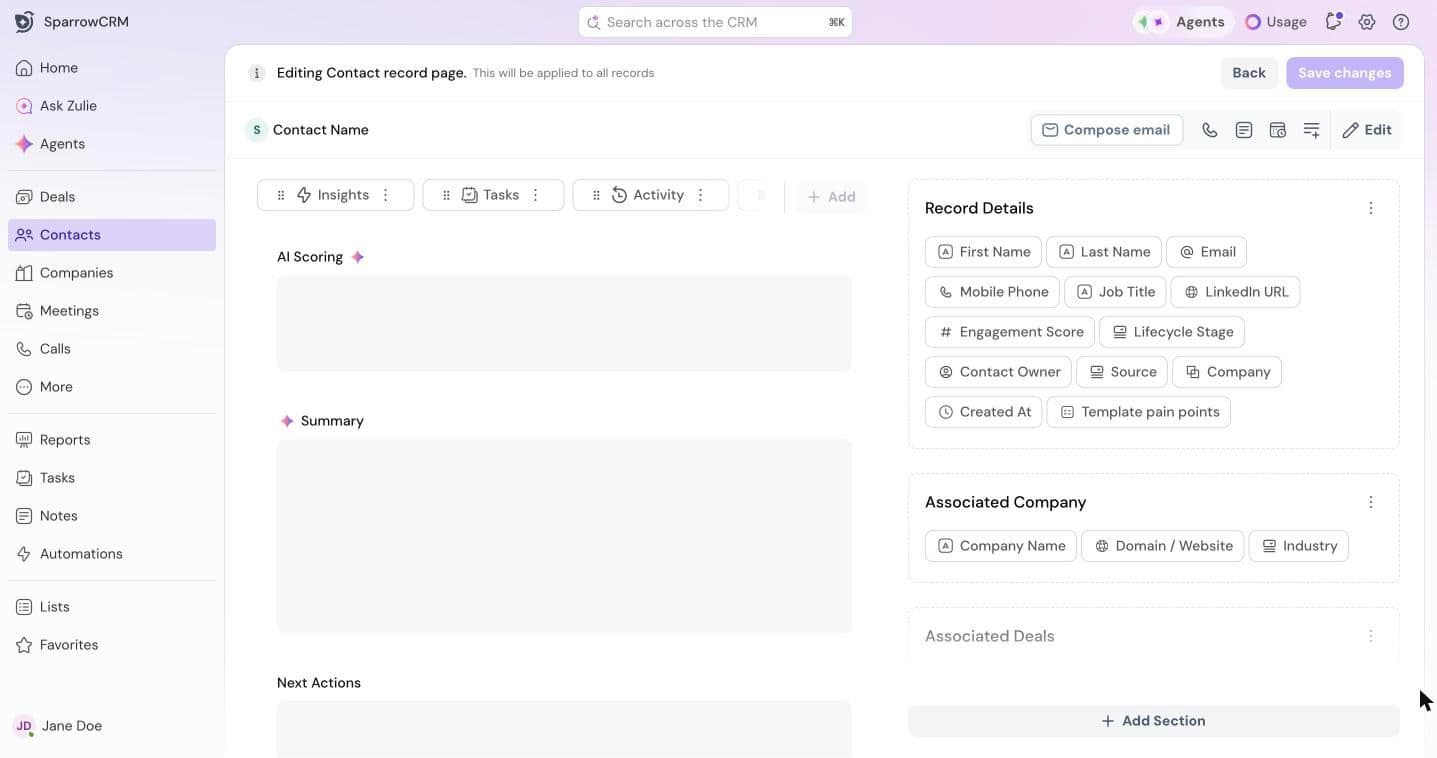
Customize the record page
You can change what every record page for an object shows. Changes apply to all records of that object, for everyone.
- Open any record, click ⋮ at the top right and choose Configure page.
- Drag the tabs to reorder them, or click Add to add one.
- On the right, choose which fields appear in each section, or click Add Section.
- Click Save changes.
Object options
Click ⋮ next to the New button on any object page for:
- Object Settings: the object's name and settings.
- Manage access: who can see and edit the object's records.
- Configure fields: add, edit or archive fields.
- Restore: bring back deleted records.
Learn more
- Understanding Contacts, Understanding Companies and Understanding Deals: what each object holds, plus search, filters and views.
- Creating Contacts: every way to add records, including imports and automatic creation.
- How to create Fields in SparrowCRM?
Need help?
Reach out to us at [email protected].
Was this helpful?