
Assigning leads and tracking assignments
For Admins and Super Admins. If you're a rep, your admin sets this up for you.
Routing rules decide which rep gets each lead from your router. Logs show where every lead went. To create a router and its form, see Setting up a lead form with Smart Router.
How routing works
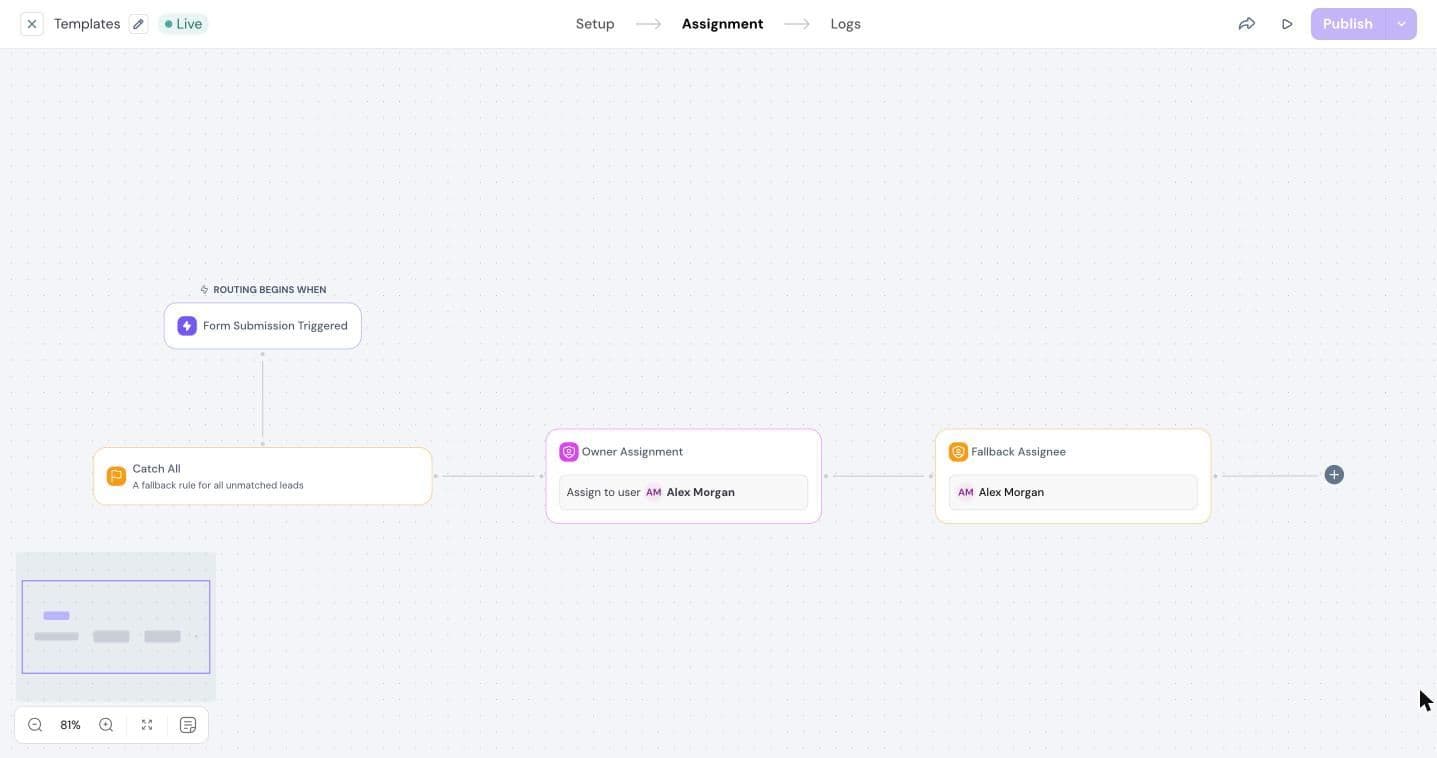
Open your router and go to the Assignment tab. Routing starts with Form Submission Triggered, when a visitor submits the form. From there, the lead moves through your rules:
- Routing Rule: checks the lead. If it matches, it follows the Matched path. If not, it moves down the Not Matched path to the next rule.
- Catch All: catches every lead that didn't match a rule. Every router needs one before you can publish.
Click + to add a rule or a Catch All.
Set up a routing rule
Click the rule and choose one:
- Re-Tagging: assign the lead to the same owner as an existing record that matches. Click Add matching condition and pick a field, like Email Domain, so new leads from a company go to the rep who already owns it.
- Define Conditions: send leads that match conditions down an assignment path. Click Add Condition, pick a field from the form or from enriched and hidden fields, like Job Title, then an operator like contains or equals, and a value. Click Apply.
Click Save.
Choose who gets the lead
Click + on the Matched path or after Catch All to add an assignment. On a Meeting Form this is Calendar Assignment, and on a Contact form it's Owner Assignment.
- Enter a Rule name.
- Choose a Distribution Method:
- Individual: always assign to one person.
- Round Robin: share leads across a team. Choose the team and how to distribute: Strict or Flexible.
- Cap-Based: assign to a user or team up to a limit you set in Set Cap Limit.
- Click Save.
Meeting settings
For a Calendar Assignment, also set:
- Meeting Duration.
- Before Meeting and After Meeting: the minimum time to keep free around each meeting.
- Meeting Title and Meeting Description for the calendar invite. You can use the visitor's details, like First Name.
- Additional Invites: people who should always be invited. Mark them as required to also check their availability.
Add a fallback
After an assignment, click + and choose Fallback Assignee. Leads that can't be assigned go to this person instead.
Track assignments
Open a live router and go to the Logs tab.
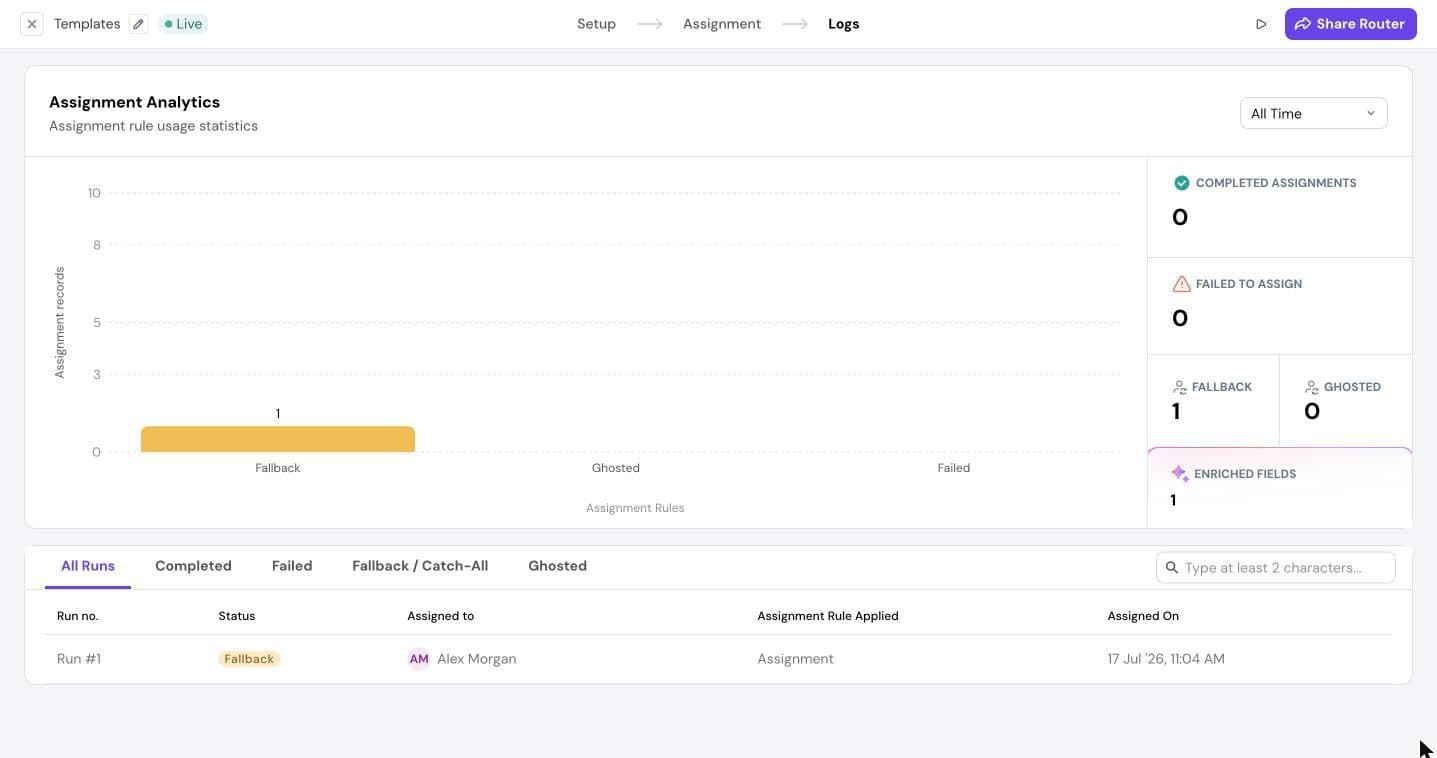
- Assignment Analytics shows how many leads were assigned by each rule. Change the date range at the top right.
- The totals show Completed Assignments, Failed to Assign, Fallback, Ghosted and Enriched Fields.
- Below, every run is listed with its status, who it was assigned to, the rule applied and when. Use the tabs to see only Completed, Failed, Fallback / Catch-All or Ghosted runs, or search.
- Click a run to see the path the lead took through your rules.
Need help?
Reach out to us at [email protected].
Was this helpful?