
Using Aircall in SparrowCRM
Overview
Once Aircall is connected (see Installing and connecting Aircall with SparrowCRM), your team can:
- Call from anywhere in SparrowCRM: a contact, company or deal record, or the call panel.
- Have every call logged automatically, linked to the right contact, company and deals.
- Log the outcome and notes right after the call.
- Get recordings, transcripts and AI summaries for recorded calls.
- Follow up with tasks, including AI-suggested next steps.
- See the full call history on every record and in the Activities timeline.
Agents use these features day to day. Admins control who can call, which numbers are logged, recording, and the list of call outcomes.
Making calls
From a record
- Open a contact, company or deal.
- Click the phone icon in the record header, or go to the record's Calls tab and click Make a call.
- Pick the number to call. Contacts with several numbers (Mobile Phone, Office Phone or any other phone field) show them all.
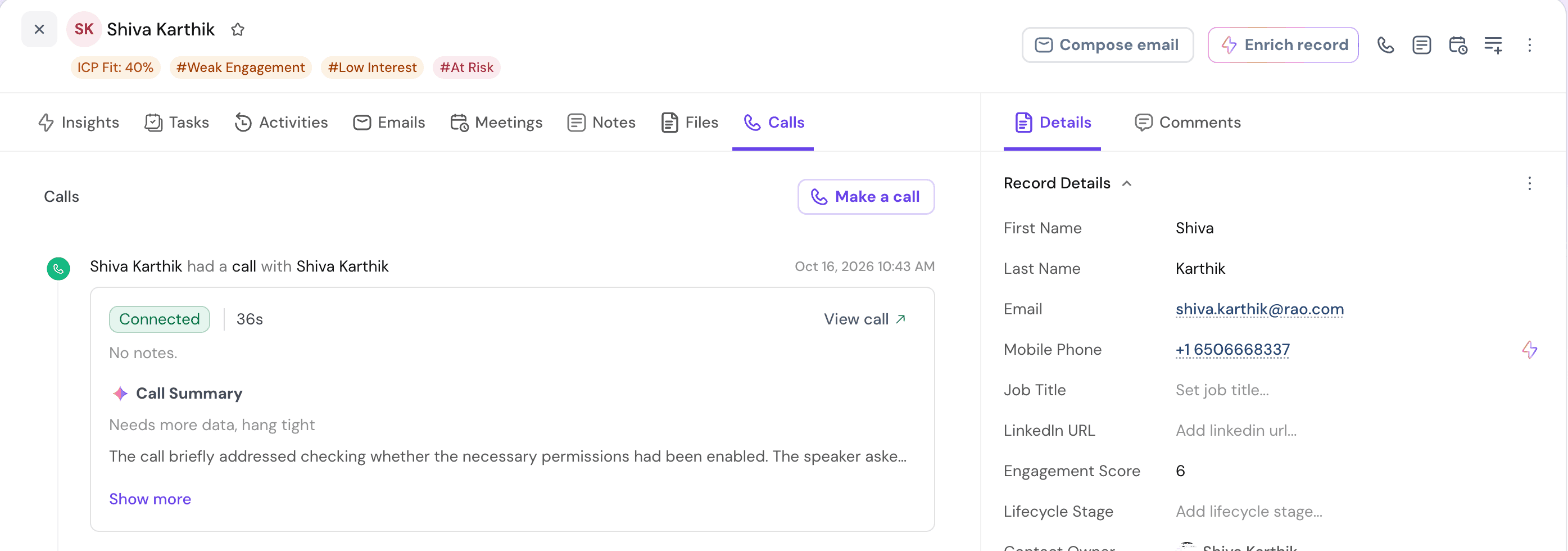
A contact's Calls tab: the phone icon sits in the record header, and each logged call shows its outcome, duration, notes and AI summary.
From the call panel
- Open the call panel and search by name, company or number.
- Phone search matches every phone field (Mobile Phone, Office Phone and custom phone fields) and ignores formatting. Typing a few digits such as 964 finds +91 96422 47890 and (964) 224-7890 alike.
- Choose the contact and the number to call, then click Call using Aircall.
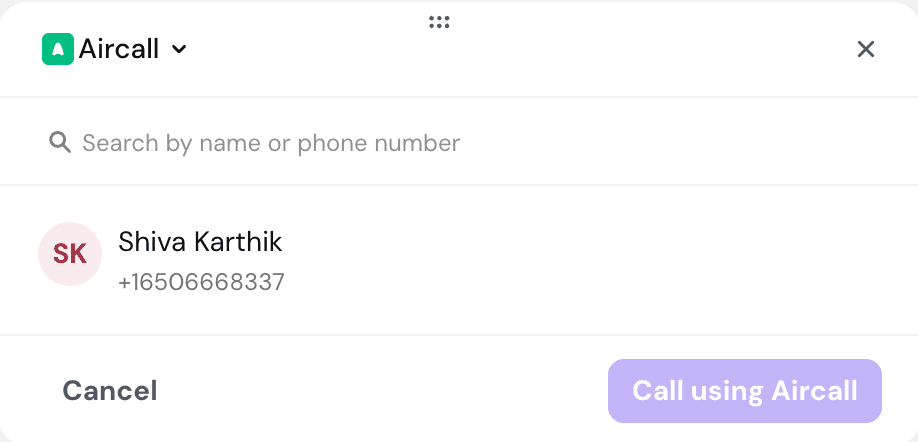
What happens when you call
SparrowCRM asks Aircall to start the call, and it runs in the Aircall phone inside SparrowCRM. The call goes out from your default Aircall number, as long as that number is connected to SparrowCRM.
Aircall can only start a call when you're signed in to the Aircall phone and available: not on another call, and not in after-call wrap-up time.
Incoming calls and contact matching
Incoming calls on connected Aircall numbers ring in your Aircall phone and are logged in SparrowCRM automatically. You don't need to do anything.
SparrowCRM matches the caller's number to a contact:
- It checks every phone field on contacts and ignores formatting (spaces, dashes, brackets, country-code style).
- If more than one contact has that number, the call is linked to the oldest of them.
- If no contact matches, the call is still logged. Open the call record and use Link Contact to attach the right contact.
Once a call is linked to a contact, it's also linked to that contact's company and deals.
Calls handled by an Aircall user who isn't linked to a SparrowCRM user aren't logged. Make sure everyone has signed in to the Aircall phone in SparrowCRM; see the installation article.
Automatic call logging
Every logged call becomes a call record that shows:
- direction (inbound or outbound), start time and duration
- the agent who handled it
- the outcome
- the linked contact, company and deals
- notes, tasks, the recording, transcript and AI summary (when available)
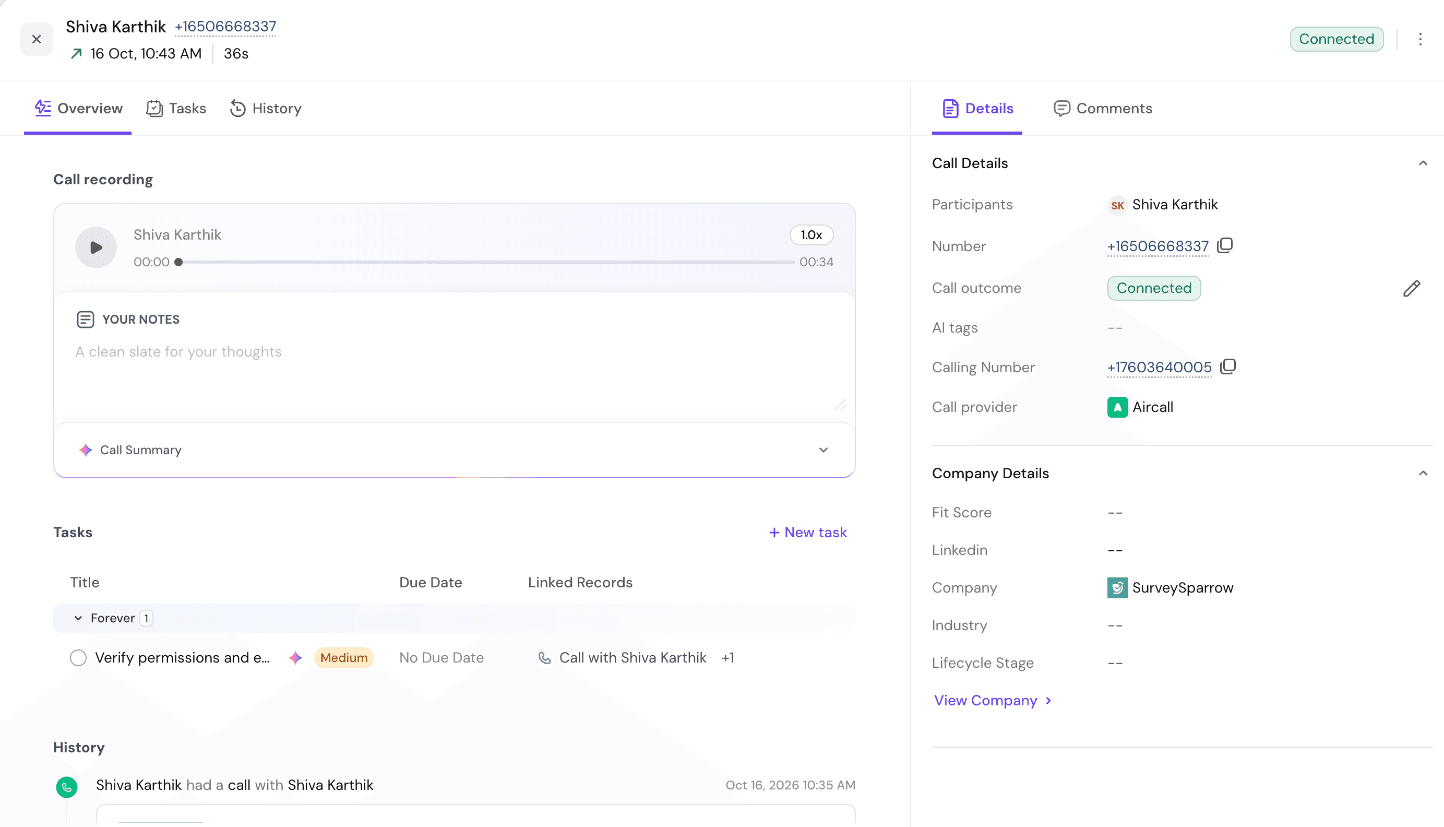
A call record: recording player, notes and call summary on the left; participants, outcome, calling number and provider on the right. The AI-created follow-up task is linked to the call and its contact.
Where to find calls:
Where | What you see |
Calls page | All the calls you can see, with filters (for example, by outcome). Click a call to open its record |
A record's Calls tab | Every call with that contact, company or deal, newest first, with outcome, duration, notes and AI summary |
A record's Activities tab | A timeline entry for each call, such as "You had a call with Jane Johnson · Connected · 26s". Click call to open it |
The call record's History | Other calls with the same contact |
Which calls you can see depends on your role: only your own calls, your team's calls, or all calls.
Call outcomes
For agents: log the outcome
Right after a call, the call panel shows Call outcome and a notes box:
- Choose the outcome, for example Connected, Voicemail or Callback Requested.
- Optionally type a note.
- Click Done. You'll see "Call outcome updated and note added successfully".
The outcome shows as a coloured tag on the call everywhere: the Calls page, the record's Calls tab and the timeline.
For admins: manage outcome tags
Every account starts with these outcomes: Connected, Wrong number, Voicemail, Callback Requested, Missed, No answer, Not interested, Meeting booked, Do not call and Disqualified.

To change them, go to Settings → Account → Call Settings → Call outcome tags and open the list:
- Add: click New tag, type a name and pick a colour.
- Rename or recolour: edit the tag in place.
- Reorder: drag the handle next to a tag.
- Remove: click the × next to a tag.
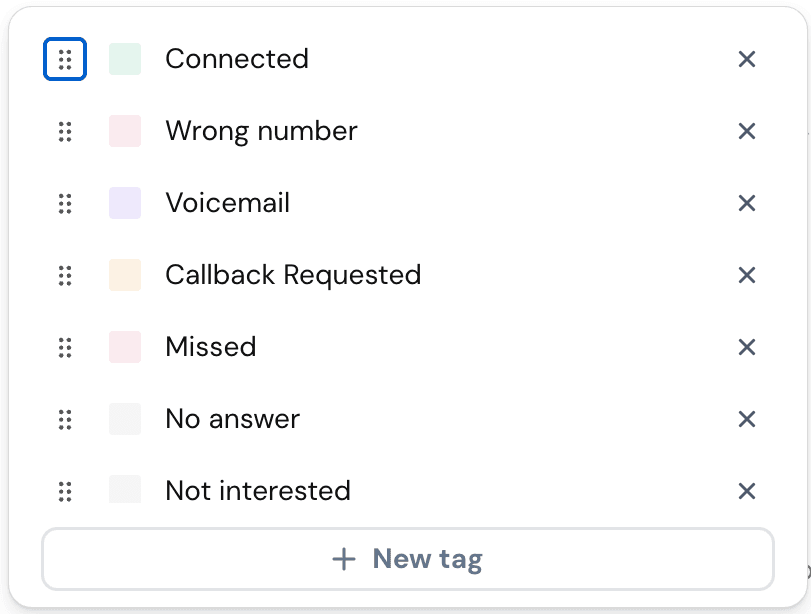
The outcome tag list: drag to reorder, click a colour or name to edit, × to remove, New tag to add.
Changes apply to your whole account only. Changing tags needs edit access to Call Settings.
Notes and tasks from calls
Notes
- Add a note in the call panel right after the call, or later on the call record's Overview.
- Call notes are titled automatically after the contact and outcome, for example "Jane Johnson - Connected-call".
- They appear on the call and in the Notes tab of the linked contact.
Tasks
- Create a follow-up task from the call record. It's linked to the call and its contacts, so it also shows on the contact's Tasks tab.
- AI next actions: when SparrowCRM's AI next actions are turned on, recorded calls are analysed and suggested follow-up tasks are created automatically. These are linked to the call and its contacts too.
- Link an existing task to a call: in the task's linked records, choose Calls and search by contact name or number. Each call shows as Call · contact name · date and time.
Recordings, transcripts and AI summaries
When recording is on for the number in Aircall, SparrowCRM collects the recording after the call ends:
- The call record first shows "Generating your call recording". This takes a few minutes.
- Then you get a recording player, the transcript, an AI call summary and AI tags such as Pricing discussed, Follow-up needed or Decision maker involved.
- The summary also appears on the call in the contact's Calls tab and in the History of other calls with that contact.
No recording? Check the recording status on the Aircall card in Call Settings. Recording may be off or set to manual for that number; the installation article explains how an Aircall admin turns it on. Calls with "No call recording available for this call" weren't recorded in Aircall.
AI summaries use your account's AI credits. If credits run out, you'll see a banner on the call asking you to top up.
What admins and agents can do
Action | Agent | SparrowCRM admin | Aircall admin (approver) |
Make and receive logged calls | ✅ with Calls → Enable, connected and signed in to the Aircall phone | ✅ same as agents | ✅ same as agents |
Log outcomes and notes, create tasks | ✅ | ✅ | ✅ |
See calls | Own, team's or all, depending on their role | Usually all | Depends on their SparrowCRM role |
First Aircall connection for the company | — | Only a Super Admin who is also an Aircall admin | Only if also a SparrowCRM Super Admin |
Role permissions are managed by a Super Admin in Settings → Users & Teams → Roles.
FAQ and troubleshooting
A call won't start and says the user is unavailable. Aircall only starts calls for agents who are signed in to the Aircall phone and available. Open the call panel, make sure the Aircall phone is signed in and your status is available, and wait for any after-call wrap-up time to finish before trying again.
The call panel says "No calling app connected". Connect Aircall in Settings → Account → Call Settings (see the installation article).
"Aircall didn't load." Check your internet connection and click Reload Aircall in the call panel.
"Your Aircall admin hasn't approved this Aircall login yet." You signed in to Aircall with an email that differs from your SparrowCRM email. Ask your Aircall admin to approve it in Call Settings, or sign in to Aircall with your matching account.
My call wasn't logged. Check that (1) your Aircall number is connected to SparrowCRM (no "Your numbers aren't linked" message in Call Settings), (2) you're signed in to the Aircall phone in SparrowCRM, and (3) your Aircall login isn't waiting for approval.
The call is linked to the wrong contact, or to none. Open the call and use Link Contact to link the right one. Matching uses all phone fields, so keeping contacts' numbers up to date avoids this.
There's no recording, transcript or summary. Recording is controlled per number in Aircall. Ask your Aircall admin to set it to automatic (Enable in Aircall in Call Settings).
I can't find Call Settings or the Connect button. Your role needs Call Settings access and the Calls → Enable permission. Ask a Super Admin.
Was this helpful?