
Tasks, notes and AI tasks
Tasks keep your follow-ups on track. Notes keep the context. Both link to records, so they show up on the contact, company or deal they belong to. Zulie also creates tasks for you from your meetings and calls.
Create a task
- Click Tasks in the left sidebar, or open any record.
- Click New Task.
- Add a title, assignees, a due date and time, and the records it's linked to.
- Set a priority: No priority, Low, Medium or High.
- Click Save.
The Tasks page sorts your tasks into Overdue, Today, This Week and Upcoming. Use the filters at the top, like Assigned to me or High Priority, to narrow the list.
AI tasks
Zulie creates tasks for you, so follow-ups don't slip:
- From meetings and calls: if someone says "I'll send the contract by Friday", Zulie suggests it as a task.
- From Ask Zulie: describe the task in plain words and Zulie creates it.
- From sequences and workflows: tasks can be added as a step or an action.
AI tasks are marked with a sparkle icon. Click AI Tasks at the top of the Tasks page to see them all.
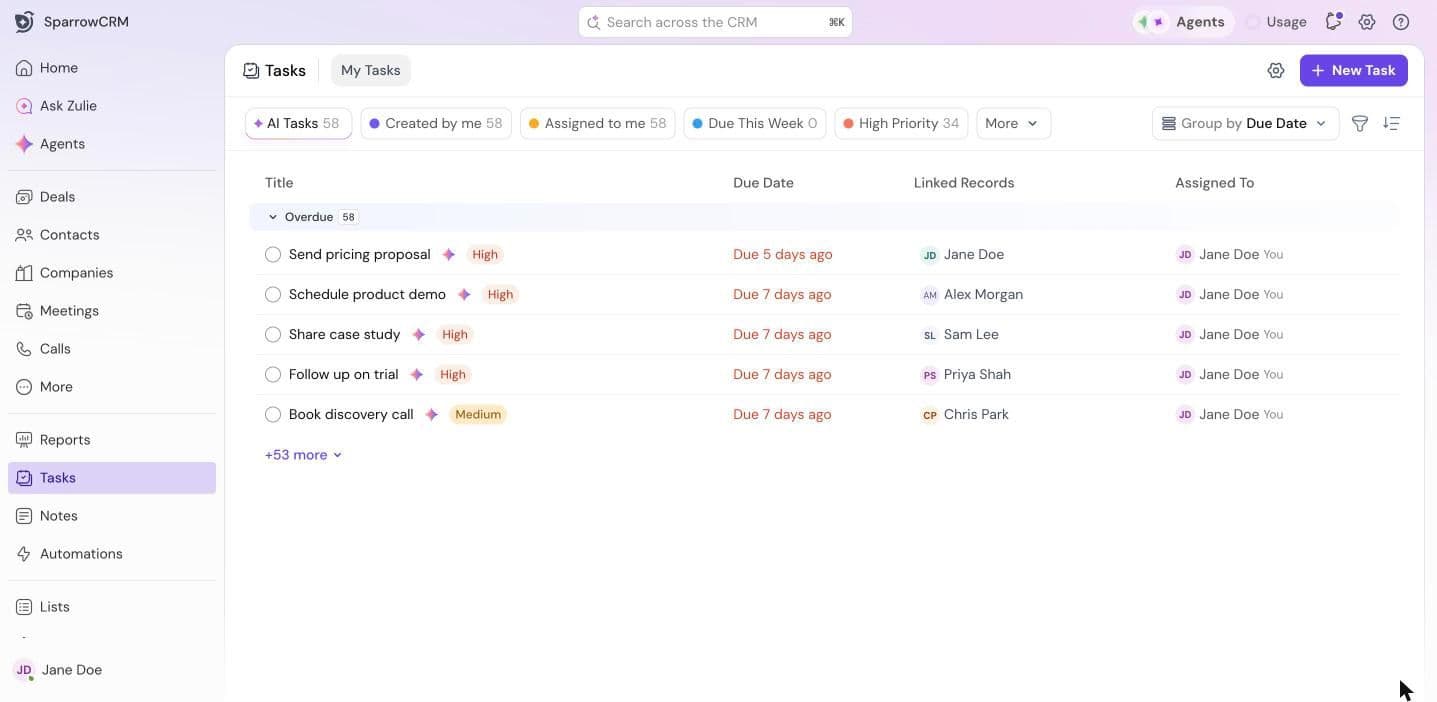
Tip: click the settings icon on the Tasks page and turn on Enable AI Auto-prioritization to let Zulie set task priorities for you.
Take notes
- Click New note at the top right of any object page, or open the Notes tab on a record.
- Write your note, or start from a template like Discovery Call, Negotiation Call or Onboarding.
- Link the note to a record so it appears on that record's page.
- To pull in a meeting's attendees, click Link meetings.
Notes update in real time, so your team can write together. Type @ to mention a teammate or link to a record.
Learn more
- How to use Tasks in SparrowCRM
- How to use Notes in SparrowCRM
Next step
Get started with Ask Zulie.
Need help?
Reach out to us at [email protected].
Was this helpful?