
Custom objects
For Admins and Super Admins.
Contacts, Companies and Deals cover most sales data. When you need to track something else, like subscriptions, partners or projects, create a custom object. It works just like the standard objects: it has its own fields and records, and it can link to any other object.
Create a custom object
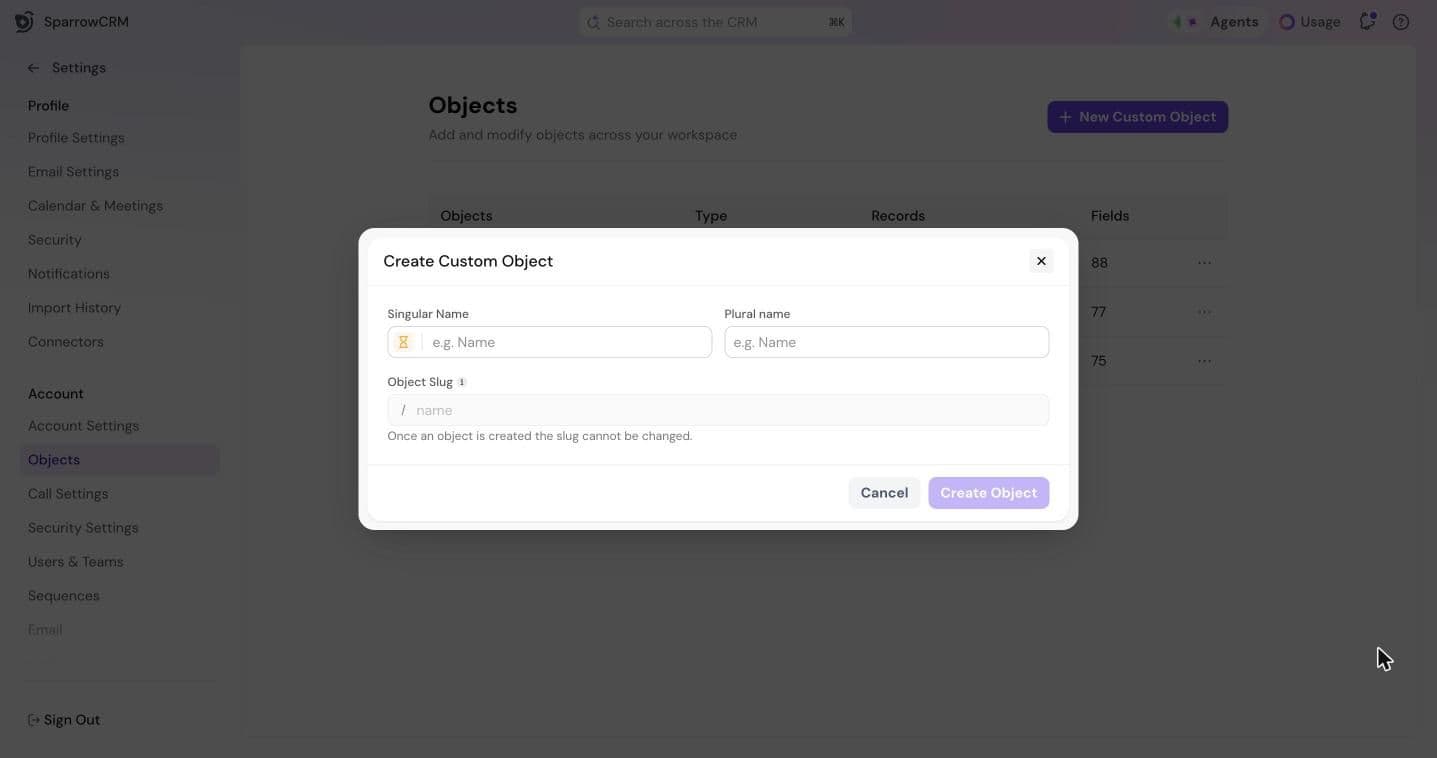
- Go to Settings > Objects.
- Click New Custom Object.
- Enter a Singular Name and a Plural name, like Subscription and Subscriptions. Click the icon next to the name to pick an icon.
- Check the Object Slug. This is used in links and can't be changed later.
- Click Create Object.
Add fields
A new object starts with a few fields. Add the ones you need from the object's Fields tab in Settings > Objects.
- Link it to other objects: add a Relationship field, for example to connect each subscription to a company.
- Track progress: turn on pipeline management for the object to add a stage field, so records can move through stages like Deals do.
- Let Zulie fill fields: turn on AI Autofill for Text, Number, Select and Multi-select fields.
For every field type and when to use it, see How to create Fields in SparrowCRM? and Relationship fields.
Customize the object
Open the object in Settings > Objects and go to the Customizations tab:
- Appearance: choose the primary field, the field that identifies each record. No two records can have the same value in it.
- Templates: choose which fields appear when someone creates a record, so only the essentials are asked for.
- Record page layout: click Configure Record Page to arrange the tabs and field sections on every record page.
Add records
Once it's set up, your custom object works like any other. Add records one at a time, or import them from a CSV file. See Working with records for editing, bulk actions and restoring deleted records.
Need help?
Reach out to us at [email protected].
Was this helpful?