
Setting up your company details and web tracking
For Admins and Super Admins. These settings apply to everyone in your workspace.
Workspace settings set up the basics for your whole company: your company details, branding, defaults for new users, and website tracking.
General settings
Go to Settings > Account > Account Settings. Make your changes, then click Save Changes.
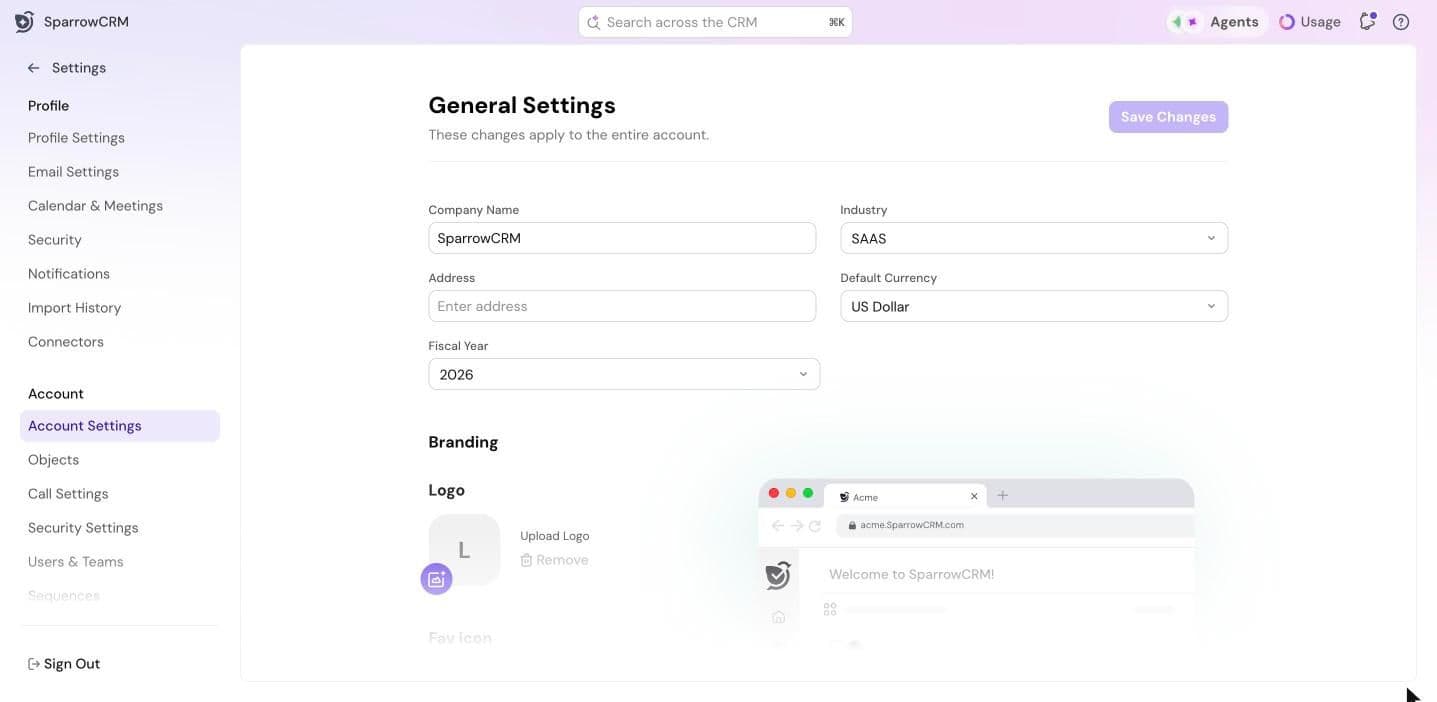
Company details
- Company Name and Address.
- Industry: the industry your company is in.
- Default Currency: the currency used for amounts, like deal values.
- Fiscal Year.
Branding
Upload your company's Logo and Fav icon, the small icon shown in the browser tab. The preview shows how they'll look.
User defaults
Set the defaults for new users. Each user can change these later in their own profile settings.
- Date and number format: for example, United States shows dates as 11/21/2026.
- Default home page: the page users land on when they sign in.
Web tracking
Web tracking shows which pages of your website your contacts visit and how long they spend on each one.
Set up tracking
- Go to Settings > Account > Web Tracking.
- On the Tracking Code tab, click Copy next to the embed code.
- Paste the code into the head tag of your website's pages, before the closing body tag.
- Optionally, under Filter Domains, enter the domains you want to track and click Add domain. Activity from other domains won't appear in SparrowCRM. If you don't add any, every domain with the code is tracked.
See visits
Open the Analytics tab. Once contacts visit your tracked domains, their page visits show up here.
Pause tracking
Click Pause tracking at the top right to stop tracking for now. The status next to Web Tracking shows whether it's Active.
Need help?
Reach out to us at [email protected].
Was this helpful?