
Use SparrowCRM MCP
SparrowCRM MCP lets you use your CRM from the AI assistant you already work in, like Claude. Ask about your pipeline, update records or log a call without opening SparrowCRM.
Connect your AI assistant
- In SparrowCRM, go to Settings > Connectors.
- Under MCP server URL, click the copy icon. The URL is https://mcp.sparrowcrm.com/mcp.
- In your AI assistant, open its connector settings, add a new connector and paste the URL.
- Sign in to SparrowCRM when asked, and allow access.
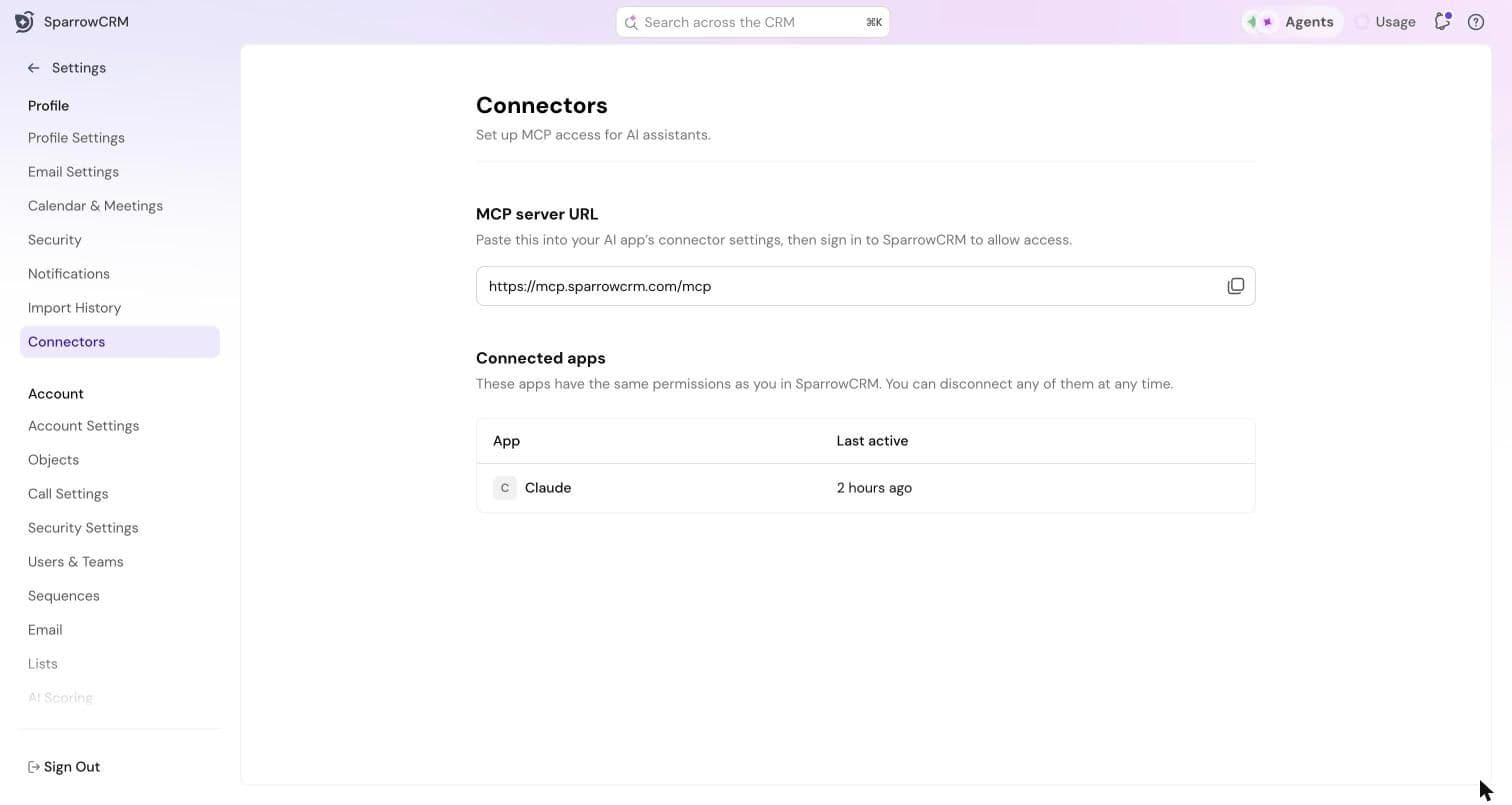
Your assistant now appears under Connected apps, with when it was last active.
What you can do
Once connected, ask your assistant to work with SparrowCRM in plain words. For example:
- Find records: "Show me my open deals closing this month."
- Get insights: "What's our total pipeline by stage?"
- Prep for meetings: "Summarize my last meeting with Acme."
- Update the CRM: "Move the Acme deal to Negotiation and add a note."
- Stay on top of follow-ups: "Create a task to send the proposal on Friday."
- Log activity: "Log a call with Jane Doe. Outcome: Connected."
Permissions
A connected assistant has the same permissions as you. It can only see and change what you can in SparrowCRM. You can disconnect it at any time from Settings > Connectors.
AI assistants can make mistakes. Check what your assistant changes in SparrowCRM.
You're all set
That's the end of the Getting started guide. Your workspace is ready, and Zulie has what it needs to help your team sell.
Need help?
Reach out to us at [email protected].
Was this helpful?