
How to use Formula fields
Plans: All plans
Access: All workspace members
Limits: 1 Formula field on Free. Unlimited on Growth, Pro, and Enterprise.
What is a Formula field
Formula fields do the math for you on the numbers already in the CRM. Instead of calculating values manually, a Formula field pulls in other fields (like Deal Amount and Discount), applies a formula, and stores the result in a new field automatically.
Use them to calculate things like deal value change, weighted pipeline, blended scores, cost of sale, or any other value that would otherwise be tracked manually in a spreadsheet or worked out again every time a report is built.
Because the calculation lives on the record itself, the value stays accurate as the underlying fields change, and it can be filtered, sorted, grouped, and reported on like any other field.
This article covers how to create and manage Formula fields. For an overview of all field types, see Creating Fields. For a broader introduction to fields, see Understanding Fields.
How to create a Formula field
Formula fields can be created on Contacts, Companies, and Deals. Follow the standard field creation flow. See Creating Fields for the three entry points.
In the Create Field modal, pick Formula as the field type. The Formula setup section appears.
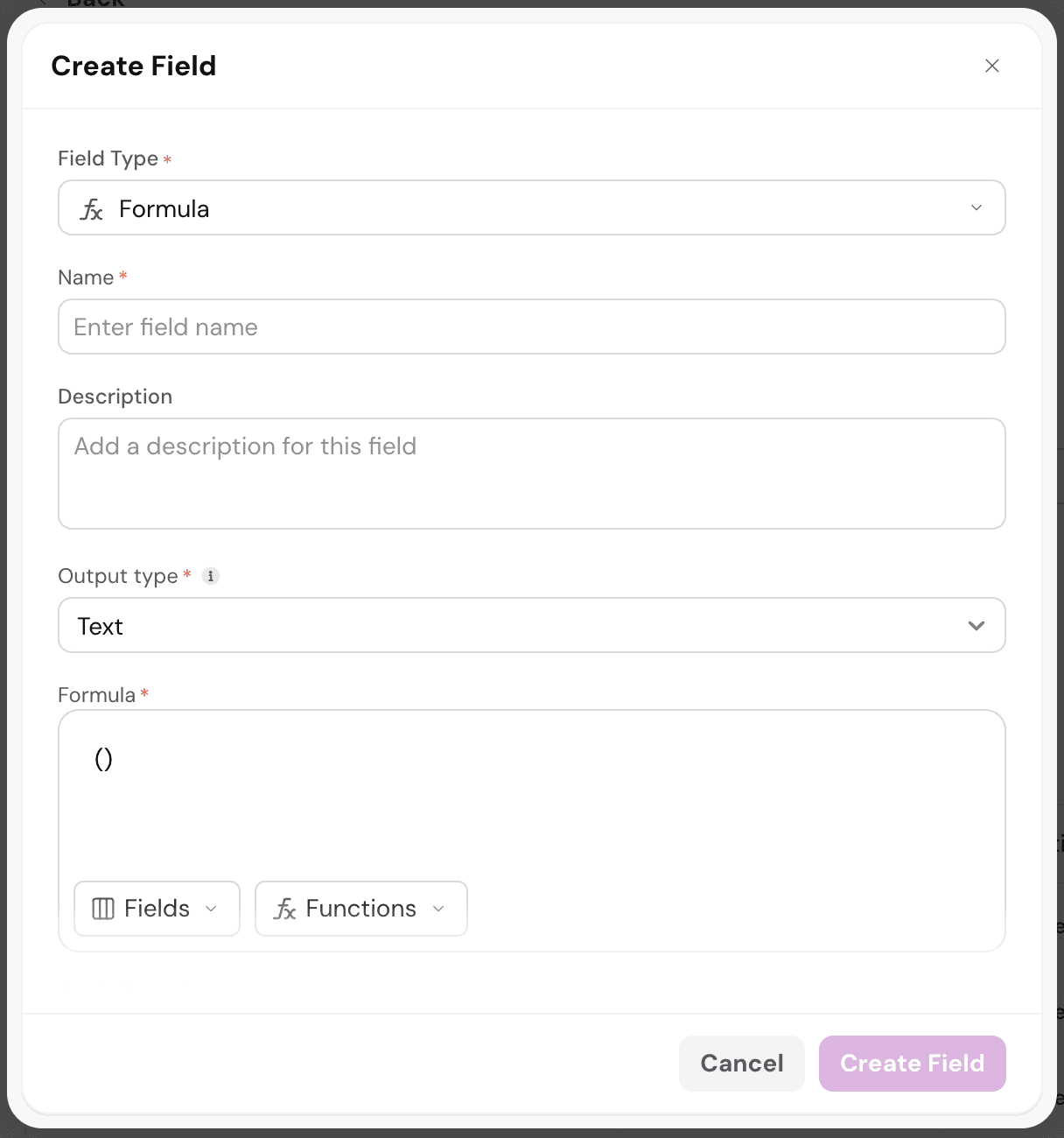
Name (required) - The label for the field on records, views, and filters.
Description (optional) - Context on what the formula calculates.
Output type (required) - The type of value the formula returns. Pick from Text, Number, Currency, or Date.
Formula (required) - The expression that calculates the value. Use the Fields button to pick fields, the Functions button to add functions, and type operators and parentheses directly.
Apply Formula to (required) - Controls whether the formula runs for existing records when the field is first created.
- New records only. Only records created after the formula field is added get a computed value.
- New + All existing records. Every existing record gets backfilled with a computed value as soon as the formula field is created.
Preview. Shows a sample record with all referenced field values, the formula expression, and the final output. Use this to verify the formula returns the expected result before saving.
Click Create Field to save.
When to use a Formula field
Two situations where a Formula field is the right tool.
When one value needs to be derived from another
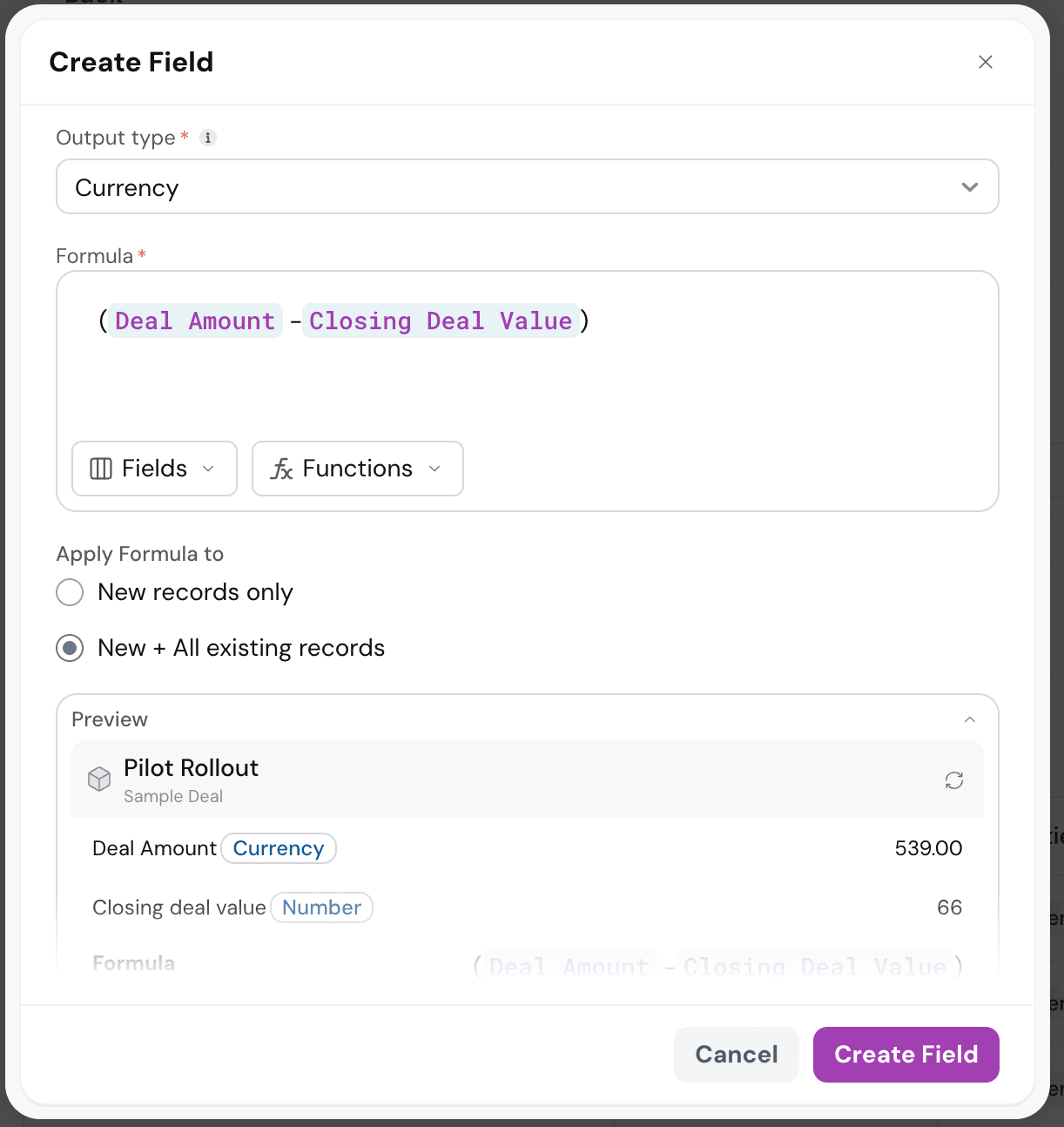
The simplest use of a Formula field is turning two existing numbers into a third. No manual entry, no re-doing the math on every record.
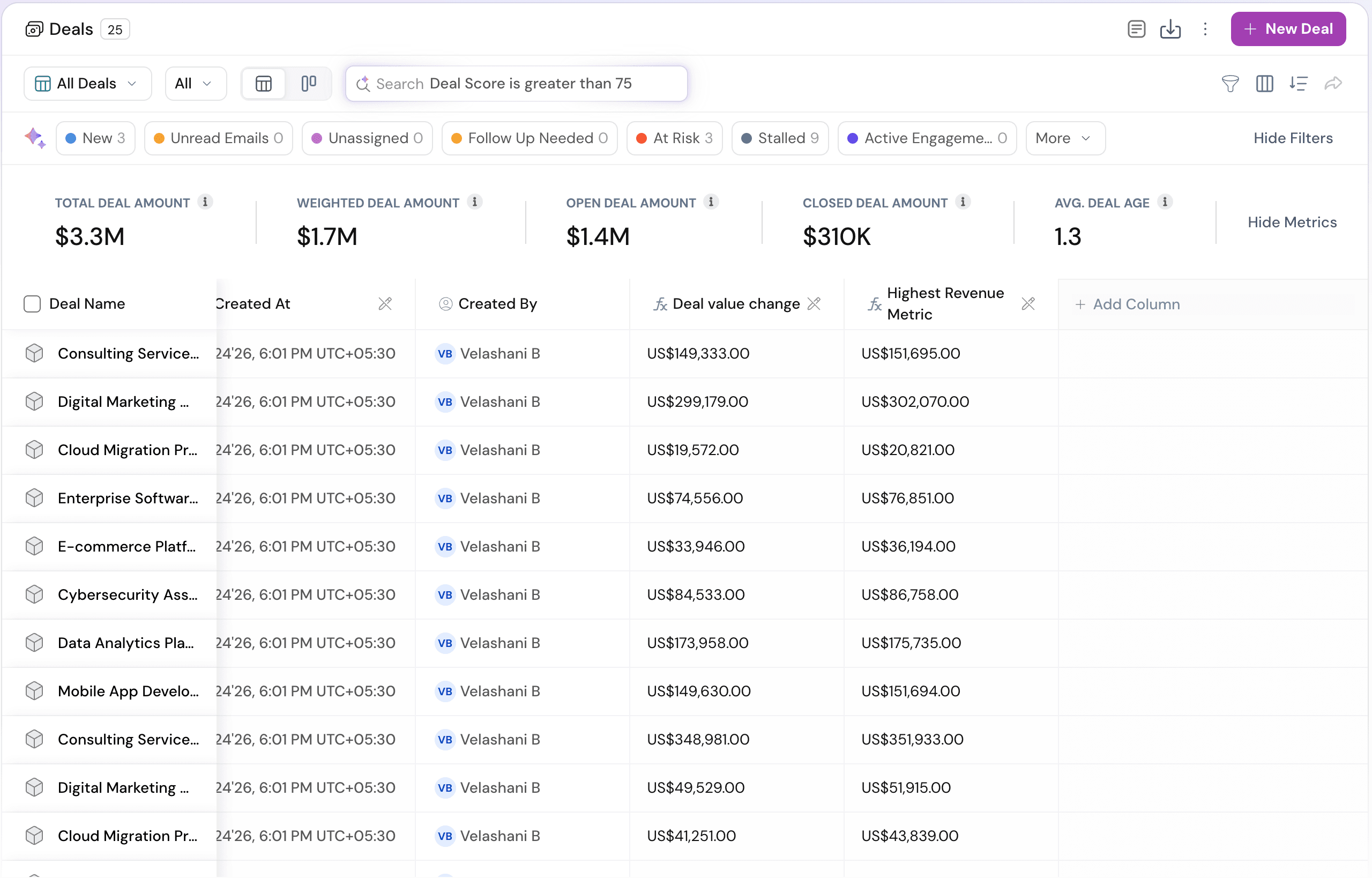
Example: Deal Value Change, tracking how much a deal shifted between its original expected value and what it actually closed at.
- Formula:
Deal Amount - Closing Deal Value - Output type: Currency
Every deal gets this value automatically, and it updates the moment either input changes.
When multiple values need to combine into one
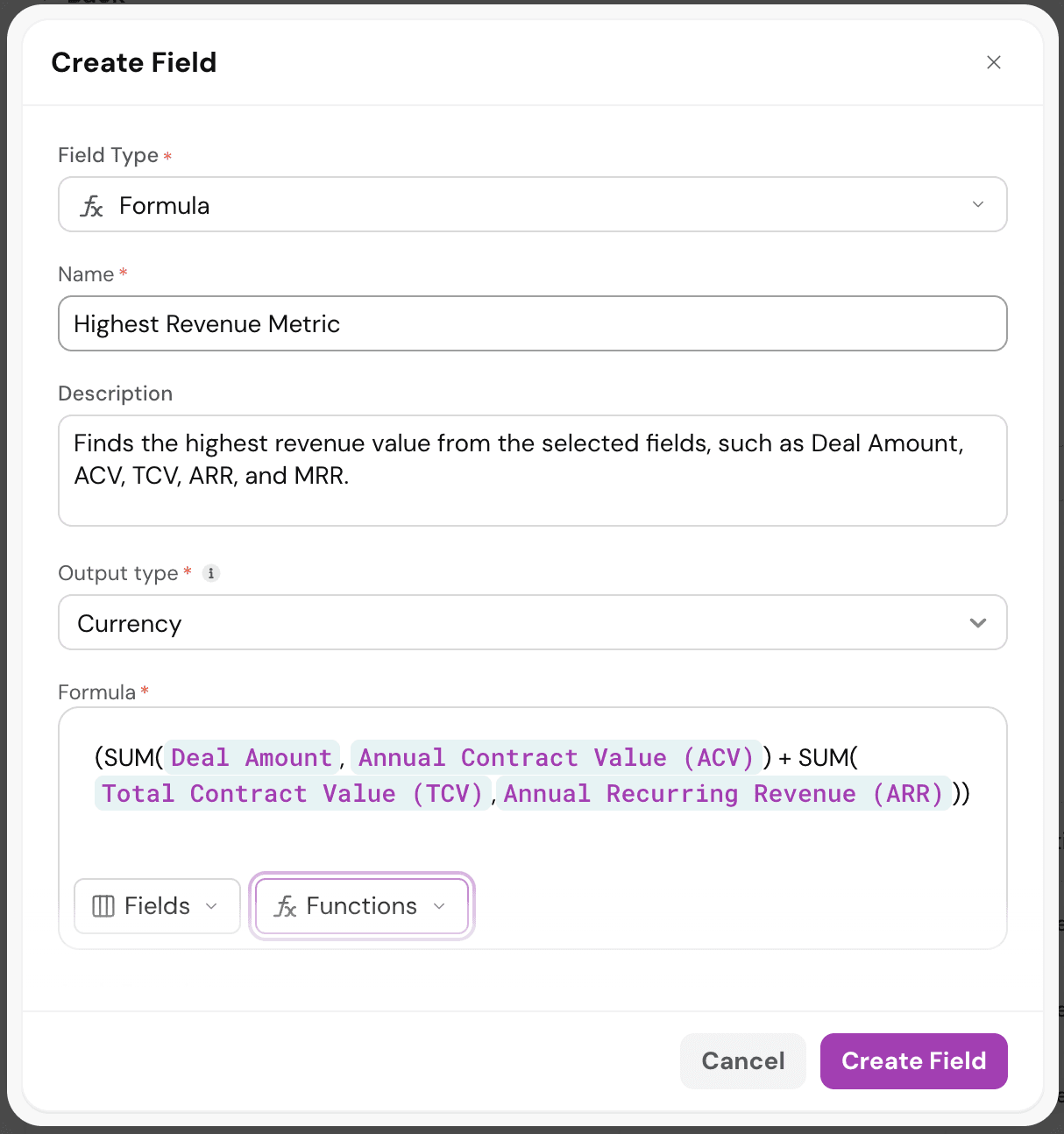
Formula fields also collapse many related numbers into a single summary value on the record. Useful when a decision or report needs to look at multiple fields together.
Example: Highest Revenue Metric, combining every commercial signal on a deal into one total that shows the deal's full revenue footprint.
- Formula:
SUM(Deal Amount, Annual Contract Value, Total Contract Value, Annual Recurring Revenue) - Output type: Currency
Instead of pulling four columns into a report every time, the value lives on the deal, always up to date.
Formula syntax basics
Syntax rule
Every formula must be enclosed in a pair of outer parentheses.(fields, functions, operators)
A formula is made up of three ingredients.
Fields - The values from other fields on the record. Pulled in from the Fields picker. In a formula they appear as pills, like Deal Amount or ACV.
Functions - Named operations that take multiple values and return a single result. Written with parentheses around the inputs, like SUM(Field A, Field B).
Operators - Symbols that combine values. +, -, *, / for math.
A formula can use any combination of the three. Simple math uses fields and operators only. More complex calculations wrap fields inside functions and combine the results with operators
Referencing fields
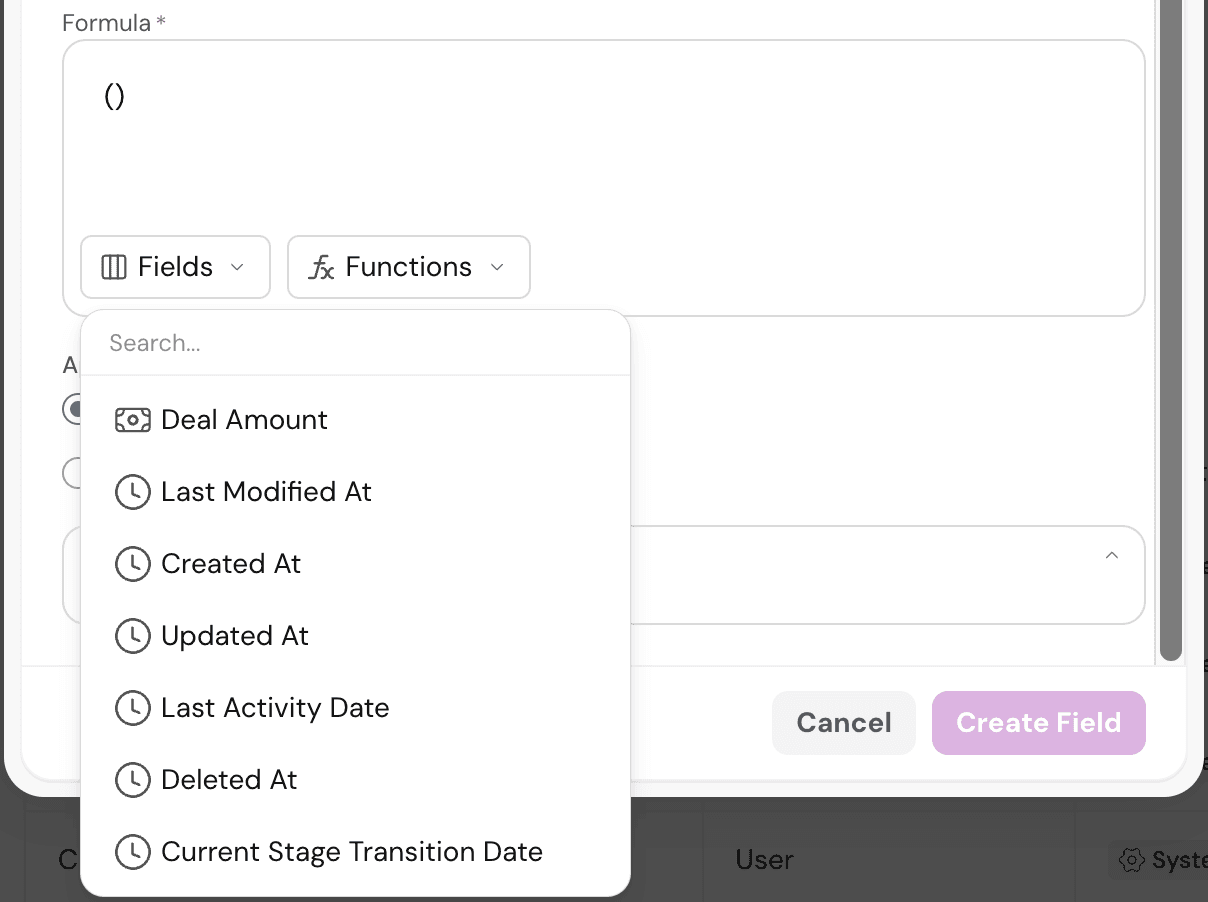
Click Fields in the formula editor to open the picker. Every field on the current object appears at the top. Fields from other objects (Contacts, Companies, Deals, Meetings, Calls) appear as expandable sub-menus below.
Use the search box to find a field quickly. Fields inserted into the formula appear as pills, color-coded by output type.
Functions available
Formula fields support four functions today. All four take multiple numeric inputs and return a single number.
Function | What it does | Example |
|---|---|---|
SUM() | Adds multiple fields or numbers together. | SUM(Deal Amount, Discount) |
MIN() | Returns the smallest value among the inputs. | MIN(Deal Amount, Target Amount) |
MAX() | Returns the largest value among the inputs. | MAX(ACV, TCV, ARR) |
AVG() | Returns the average across the inputs. | AVG(Engagement Score, Fit Score, Lead Score) |
Operators
Basic arithmetic operators work directly in the formula text.
+addition-subtraction*multiplication/division()parentheses for grouping
Functions and operators can be combined freely. (SUM(Deal Amount, ACV) + SUM(TCV, ARR)) is valid.
Editing and archiving a Formula field
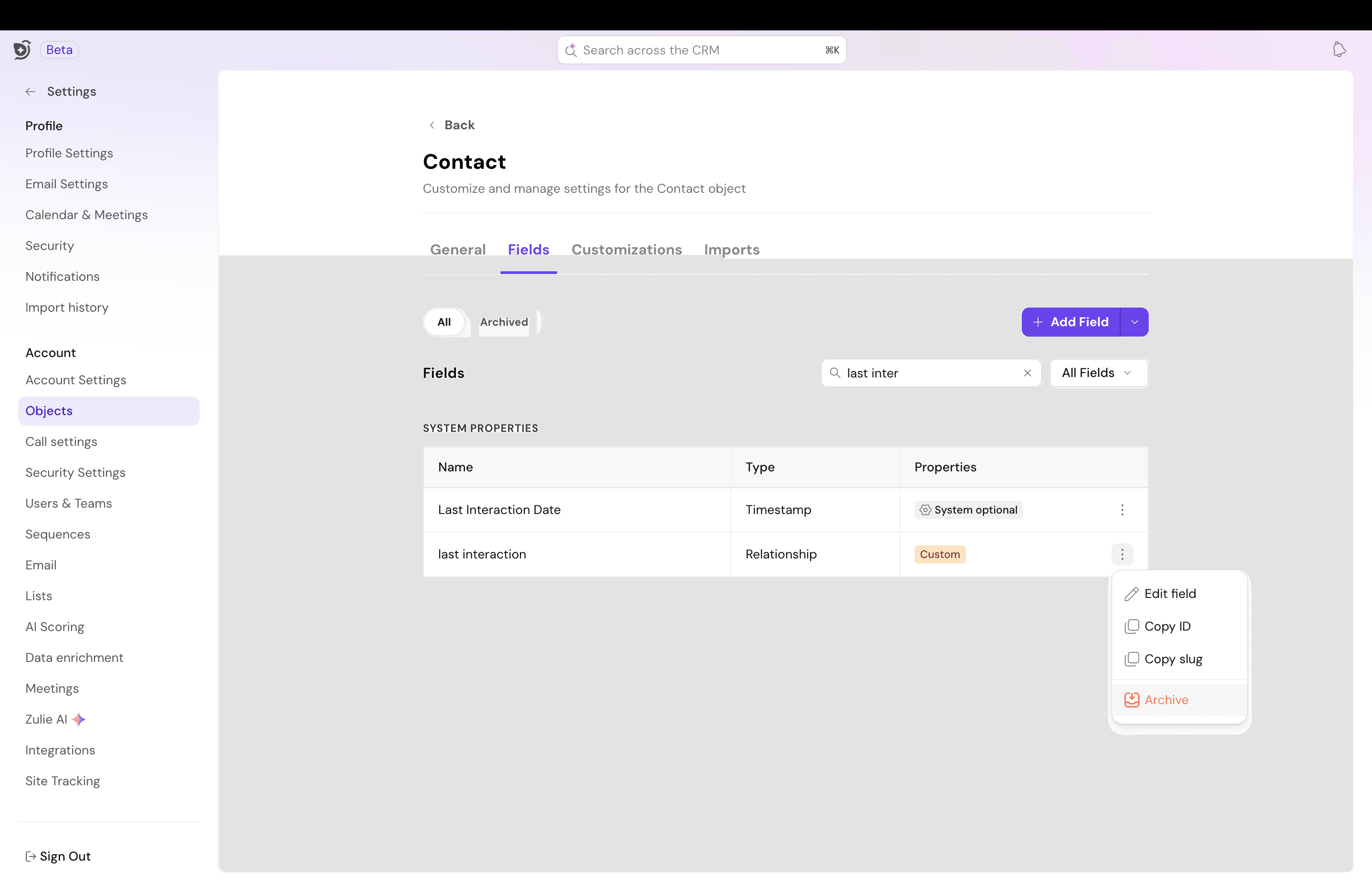
To edit an existing Formula field, go to the object's Fields where that specific field is created, find the field, and click the three-dot menu on the right. Select Edit field. The Edit Field modal opens.
Click Update Field to save.
Errors and broken references
If a referenced field is archived or deleted, the formula breaks. The formula field shows an error message instead of a computed value until the reference is fixed.
If a formula produces an invalid result (division by zero, for example), the field also shows an error.
Other actions
The three-dot menu on a field row also offers:
- Copy ID - Copies the field's internal ID.
- Copy slug - Copies the field's URL-friendly slug.
- Archive - Removes the field from the object. Existing computed values are lost. Referenced fields stay intact.
How to add Formula fields to objects
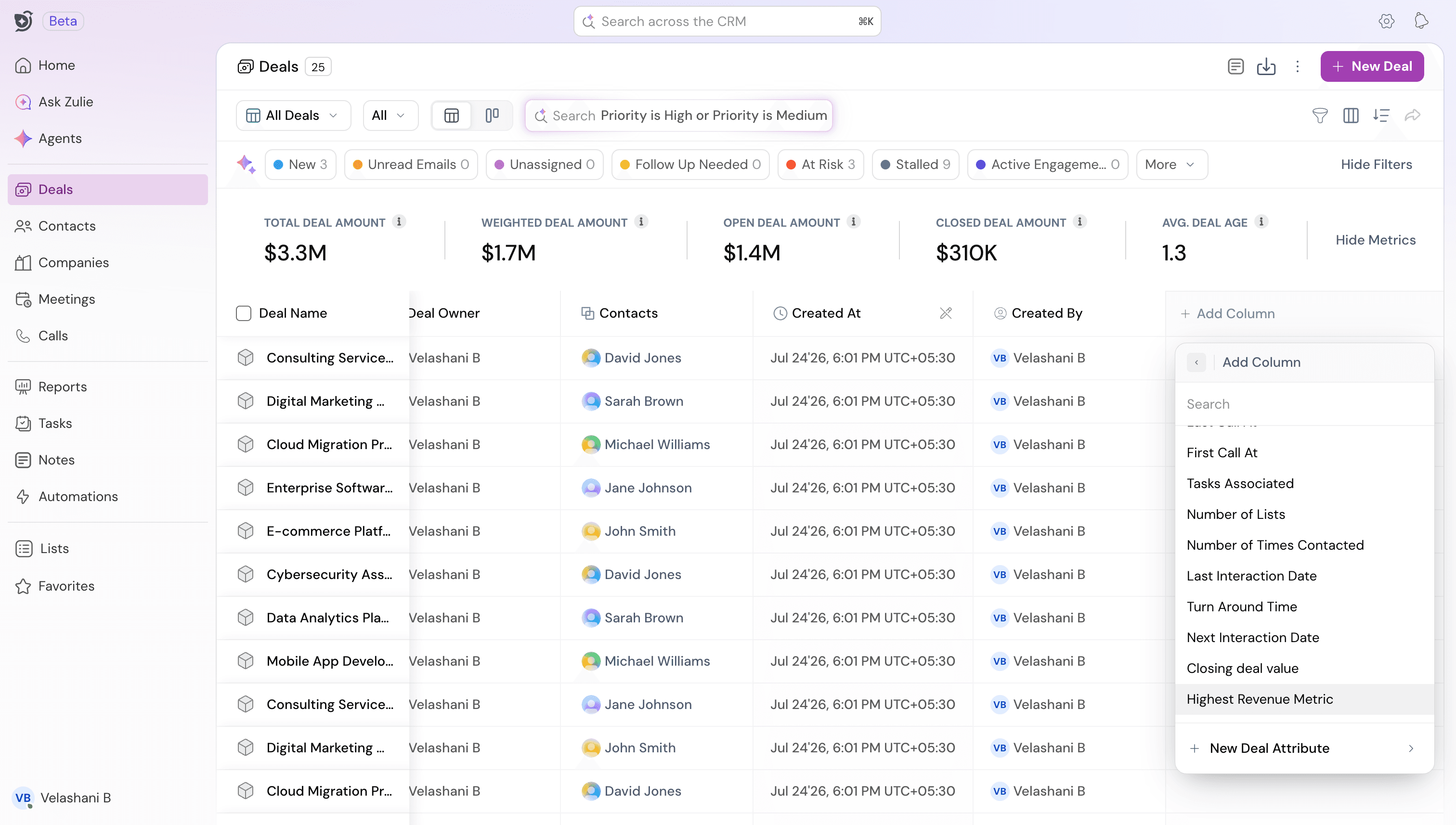
Once created, the Formula field shows up on every record for that object, with the computed value populated automatically when the field is added to the table.
Formula bank
A starting library of useful formulas. Copy any of these into a new Formula field and adjust the field names to match the ones on the object.
Some specific custom fields exist; create them first if needed.
Formula name | Expression | Output type |
|---|---|---|
Discount given on a deal | (Deal Amount - Closing Deal Value) | Currency |
Total revenue captured by a deal | (SUM(Deal Amount, Annual Contract Value, Total Contract Value)) | Currency |
Deal margin after cost | (Deal Amount - Cost of Delivery) | Currency |
Effective deal value after deductions | (Deal Amount - SUM(Discount, Fees)) | Currency |
Highest revenue metric across the deal | (MAX(Deal Amount, ACV, TCV, ARR, MRR)) | Currency |
Lowest performing revenue signal | (MIN(ACV, TCV, ARR, MRR)) | Currency |
Average signal score | (AVG(Engagement Score, Fit Score, Lead Score)) | Number |
Need help? Reach out to us at [email protected].