
Import your data
Bring your existing records into SparrowCRM so Zulie has data to work with. You can import a CSV file, or migrate straight from HubSpot.
Import from a CSV file
- Open the object you want to import into, such as Contacts or Deals.
- Click the Import data from CSV icon at the top right.
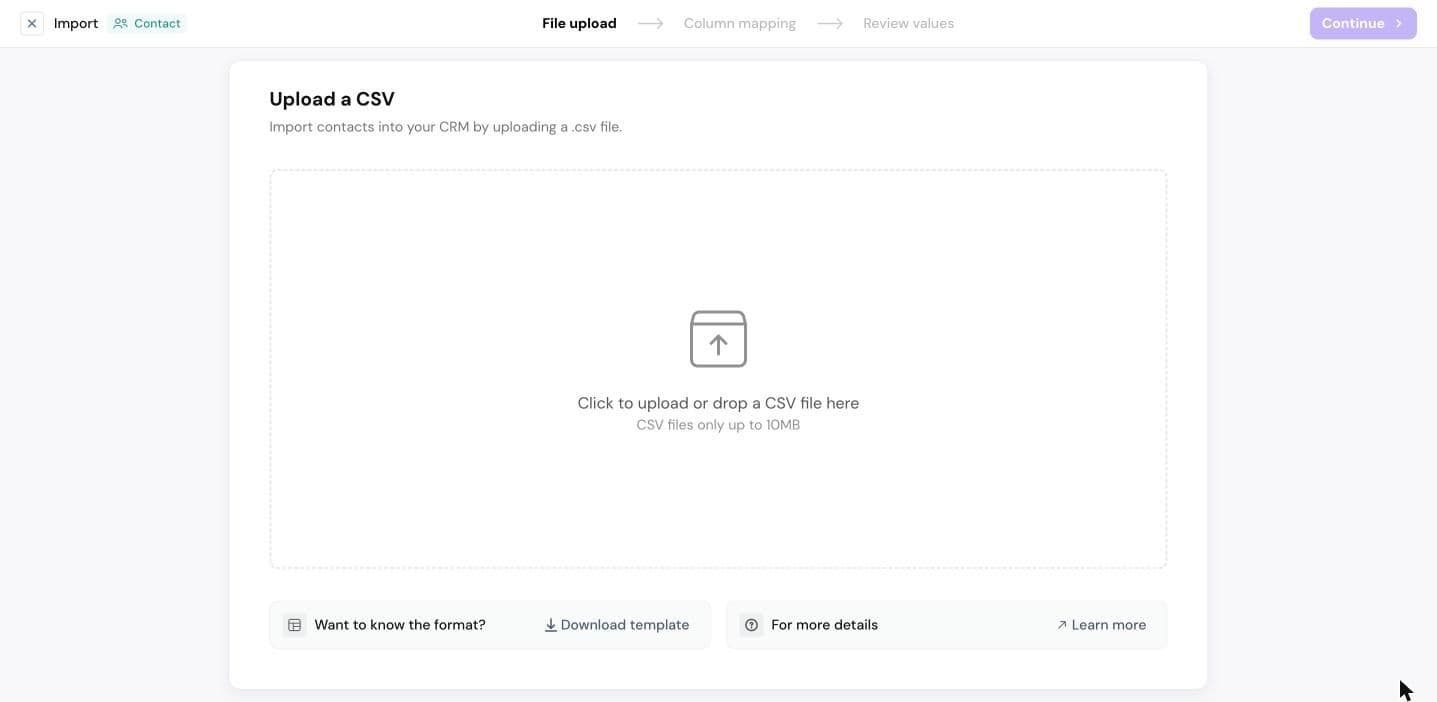
- Upload your CSV file (up to 10MB). Not sure of the format? Click Download template.
- Click Continue.
- In Column mapping, match each column in your file to a SparrowCRM field.
- In Review values, check your data, then finish the import.
To see past imports, go to Settings > Import History.
Tip: if your file has columns SparrowCRM doesn't have fields for yet, create those fields before you import. See Understand the data model.
Migrate from HubSpot
For Admins and Super Admins.
Migrate CRM brings your contacts, companies, deals and their owners over from HubSpot.
- Go to Settings > Migrate CRM.
- Next to HubSpot, click Migrate and follow the prompts.
Track the progress of your migration in the History tab.
Next step
Understand the data model.
Need help?
Reach out to us at [email protected].
Was this helpful?