
Inviting users and creating teams
For Admins and Super Admins. If you're a rep, your admin adds you and sets up your team
Users are the people who can sign in to your SparrowCRM workspace. Teams group users together, for example by region or by sales motion, so records can be shared and assigned to a whole group at once.
To control what each user can see and do, see Controlling what users can see and do.
Find users and teams
Go to Settings > Users & Teams. The page has three tabs: Users, Teams and Roles.
The Users tab lists everyone in your workspace with their role, account status, team, what they have access to, and when they were added. Use the search and filter icons to find someone.
Add users
- Click New User > Add Users Manually.
- Enter one or more work email addresses.
- Choose a Role. Every user needs one.
- Optionally, add them to a team.
- Click Send Invitations.
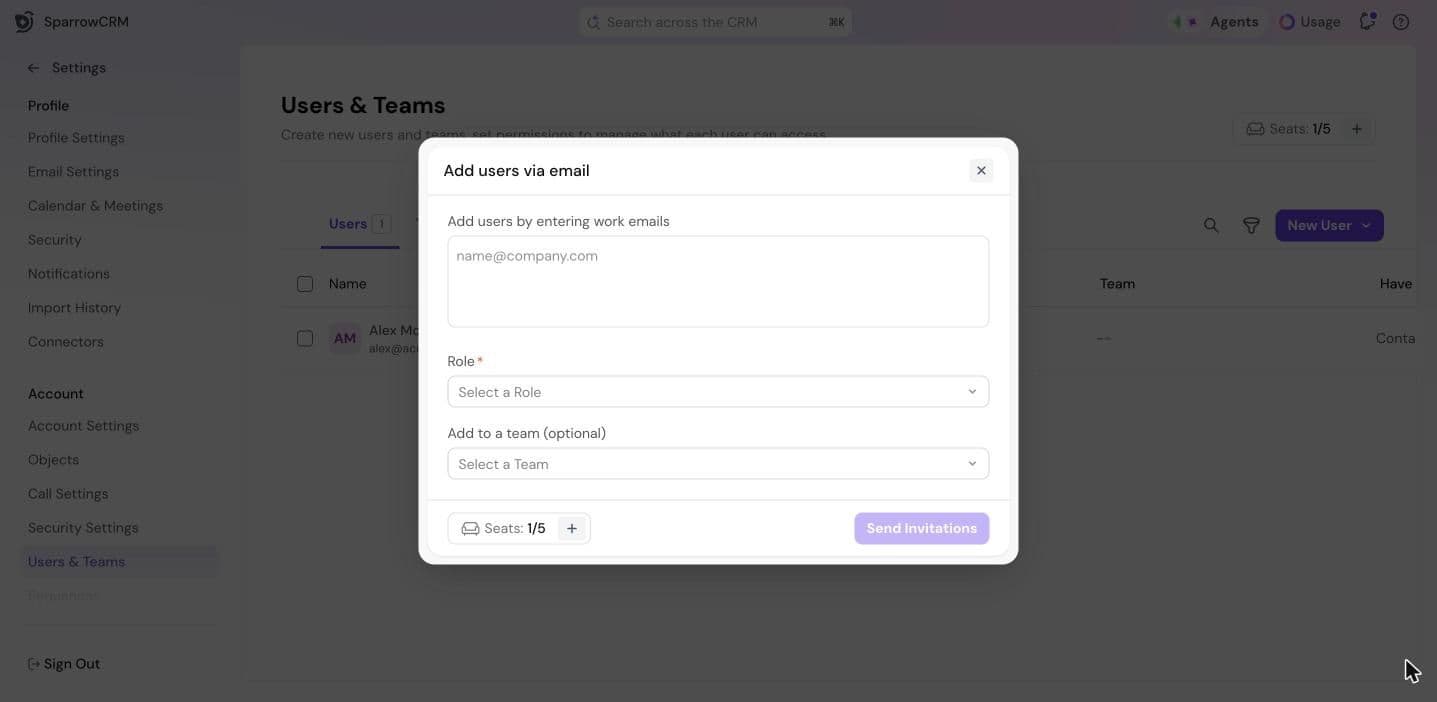
Each person gets an email invitation to join your workspace.
Seats
Each user takes up one seat. Seats, at the top right, shows how many you're using out of how many your plan includes, like 1/5. To add more, click + next to Seats. This opens your plan's checkout page.
Manage a user
Hover over a user and click ⋮:
- Edit user: update their name, phone number, team and role, then click Save.
- Make as admin: give them the Admin role.
- Deactivate: remove their access to the workspace.
Create a team
- Go to the Teams tab and click New Team.
- Enter a Name.
- To nest it inside another team, select Add this team under another team and choose the parent team.
- Choose a Team manager. The team manager can manage the team's members.
- Optionally, add a description of what the team does.
- Click Create team, then add members by name or email and click Save Changes.
Once a team exists, you can assign leads to it, for example with round robin in Smart Router.
Manage a team
Hover over a team and click ⋮:
- View Assigned Users: see and change who's on the team.
- Edit Team: change its name, parent team, manager or description.
- Delete Team: remove the team. Its members lose the shared access they had through the team, but the users themselves aren't deleted. This can't be undone.
Need help?
Reach out to us at [email protected].
Was this helpful?