
Working with AI agents
AI agents do routine CRM work in the background. They watch for events like a finished call or a newly enriched contact, then act: filling in missing fields or researching a contact before you reach out. Changes to your records wait for your approval, so nothing is updated without you seeing it.
Meet the agents
Go to Agents in the sidebar. Active agents are the ones turned on for your account. Other agents are available on the Pro plan.
Agent | What it does | When it runs |
|---|---|---|
Hygiene Agent | Fills in missing fields from calls, emails and meetings, so records stay tidy without manual work. | After every call, email and meeting |
Research Agent | Researches a newly enriched contact across the public web and files a briefing with sources, for a rep to read before reaching out. | Whenever a contact is enriched |
Follow-up Agent (Pro) | Nudges you when a deal goes quiet, and drafts the follow-up for you. | - |
Recap Agent (Pro) | Writes up every meeting and call, so decisions and next steps don't get lost. | - |
Prospecting Agent (Pro) | Finds leads that look like your best customers and adds them to your pipeline. | - |
Each card shows whether the agent is running or Paused, and how many times it has run.
To turn an agent on, open it and click Run Agent. Its status changes to Live and it starts running on its own. To stop it, click Pause Agent.
See what an agent has done
Click an agent to open it.
- Agent Runs lists every run: when it ran, which record it ran on, what triggered it, like After email, and how many actions it suggested. Runs waiting for you are under Pending approval, and finished ones under Past.
- Overview shows Run Analytics (total runs, agent health, approval rate, total suggestions and when it was last active) and What does this agent do?: when it runs, what it does, and its approval mode.
Review an agent's suggestions
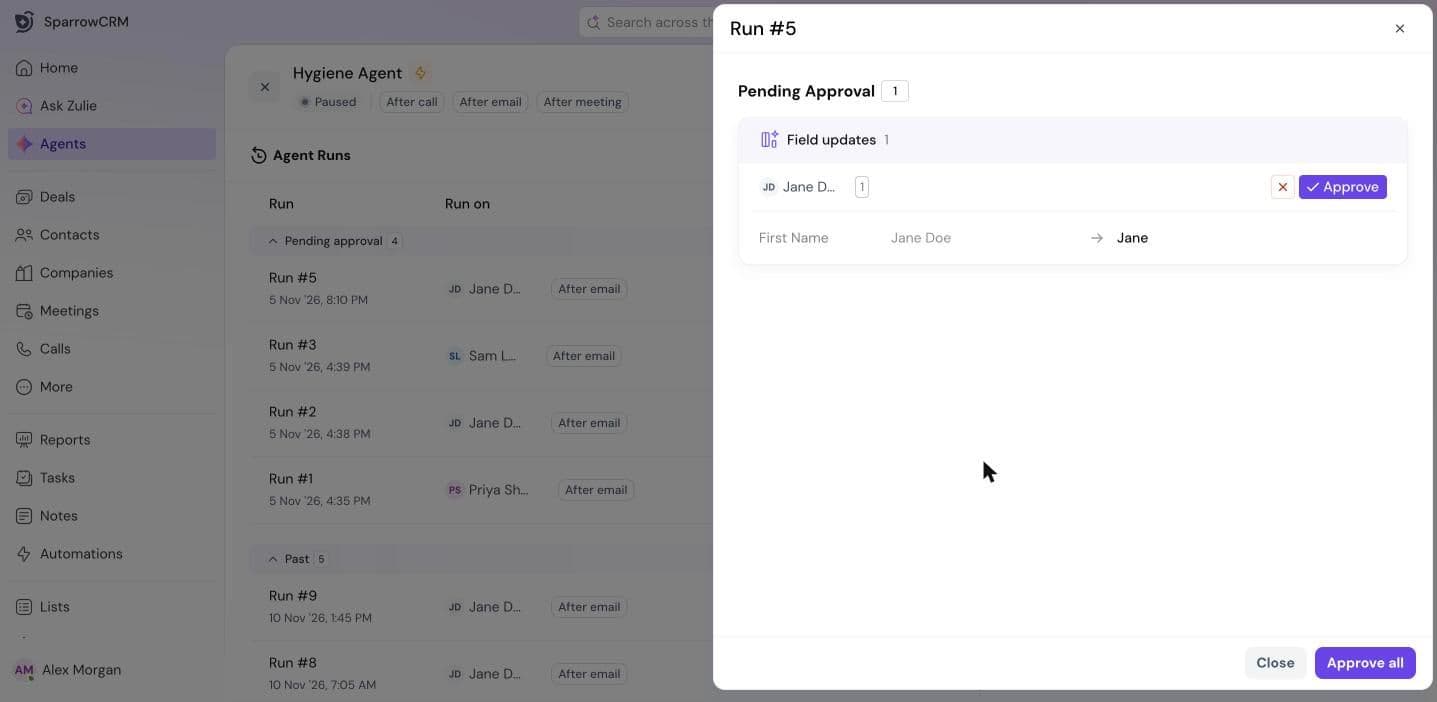
When an agent's Approval mode is Always ask for approval, it suggests changes instead of making them. When there are suggestions waiting, Pending approvals appears in the top bar. Click it, then Review now, to jump straight to them.
- Open the agent and find a run under Pending approval.
- Click Open. You'll see each suggested change, for example a field update with the current value and the new value.
- Click Approve to apply a change, or the ✕ to reject it. To accept everything in the run, click Approve all.
Read a research briefing
Open a Research Agent run to see its Research briefing. It starts with who the contact is and How we know: which sources confirm their identity. The briefing is split into sections: Executive summary, Recent signals, Role and responsibilities, Company snapshot, Conversation guide, Career, Online presence and Sources. Each point links to where it came from.
Briefings are filed automatically, so there's nothing to approve.
Turn agents on or off
For Admins and Super Admins. Go to Settings > Account > AI Agents and use the switch on each agent to make it available for your account.
Need help?
Reach out to us at [email protected].
Was this helpful?