
Set up calling
For Admins and Super Admins. If you're a rep, your admin sets this up for you.
Connect a calling app so your team can make and log calls from SparrowCRM. Once it's set up, calls are recorded, transcribed and summarized by Zulie, and linked to the right contact, company and deals.
Connect a calling app
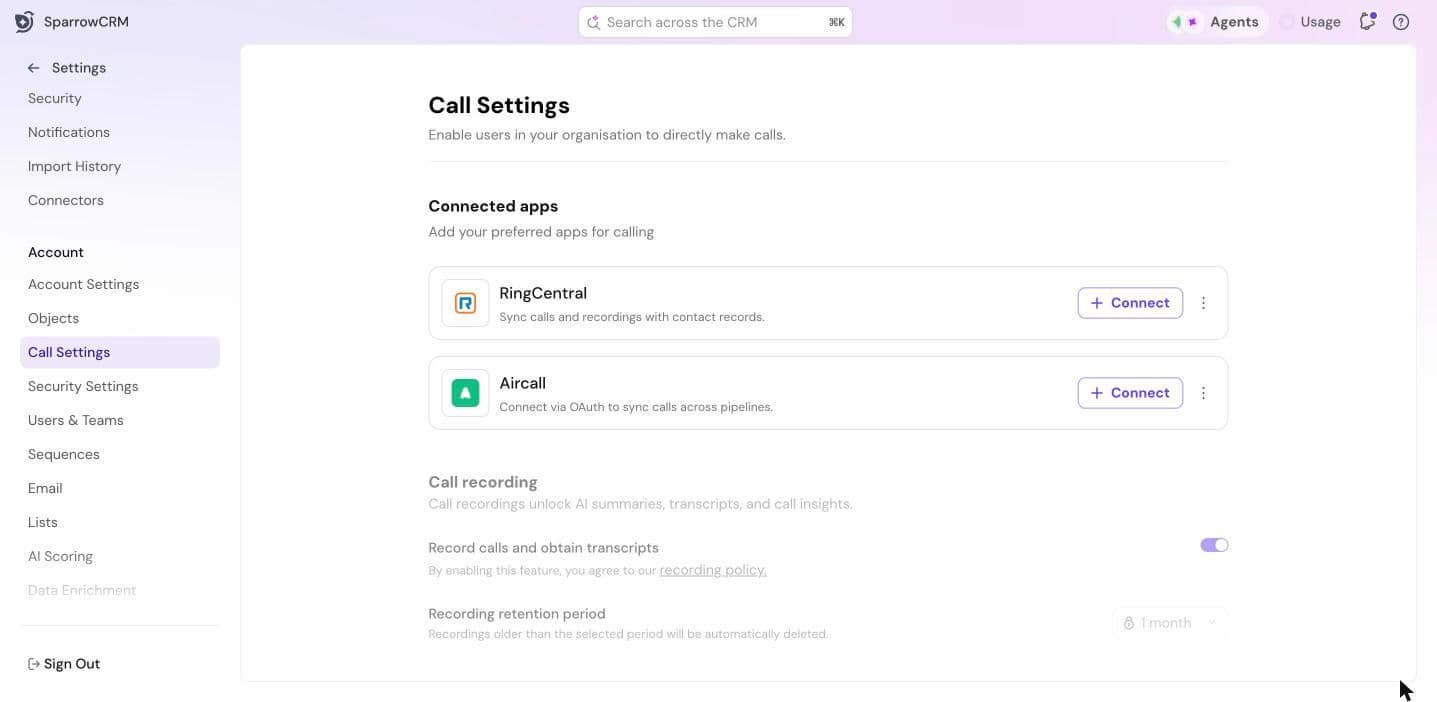
- Go to Settings > Call Settings.
- Under Connected apps, click Connect next to RingCentral or Aircall.
- Sign in to your calling app and allow SparrowCRM access.
The first calling app you connect becomes your default. For Aircall, the first connection must be made by someone who is both a SparrowCRM Super Admin and an Aircall admin. Each person then connects their own Aircall account. See Installing and connecting Aircall with SparrowCRM.
Turn on call recording
Under Call recording, turn on Record calls and obtain transcripts. Recordings power AI summaries, transcripts and call insights.
Set the Recording retention period. Recordings older than this are deleted automatically.
Review call outcome tags
Outcome tags are what reps pick to log how a call went. They feed reporting and Zulie's recommendations. SparrowCRM comes with a default set, including Connected, Voicemail, No answer and Meeting booked.
Under Call outcome tags, you can rename, reorder or delete tags, or add your own.
Learn more
- Setting up Calls: full details on providers, recording and outcome tags.
- Using Aircall in SparrowCRM: making and logging calls with Aircall.
Next step
Import your data.
Need help?
Reach out to us at [email protected].
Was this helpful?