
Navigating SparrowCRM
SparrowCRM has three areas: the left sidebar, the top bar, and the main workspace in the middle. This article shows what's in each.
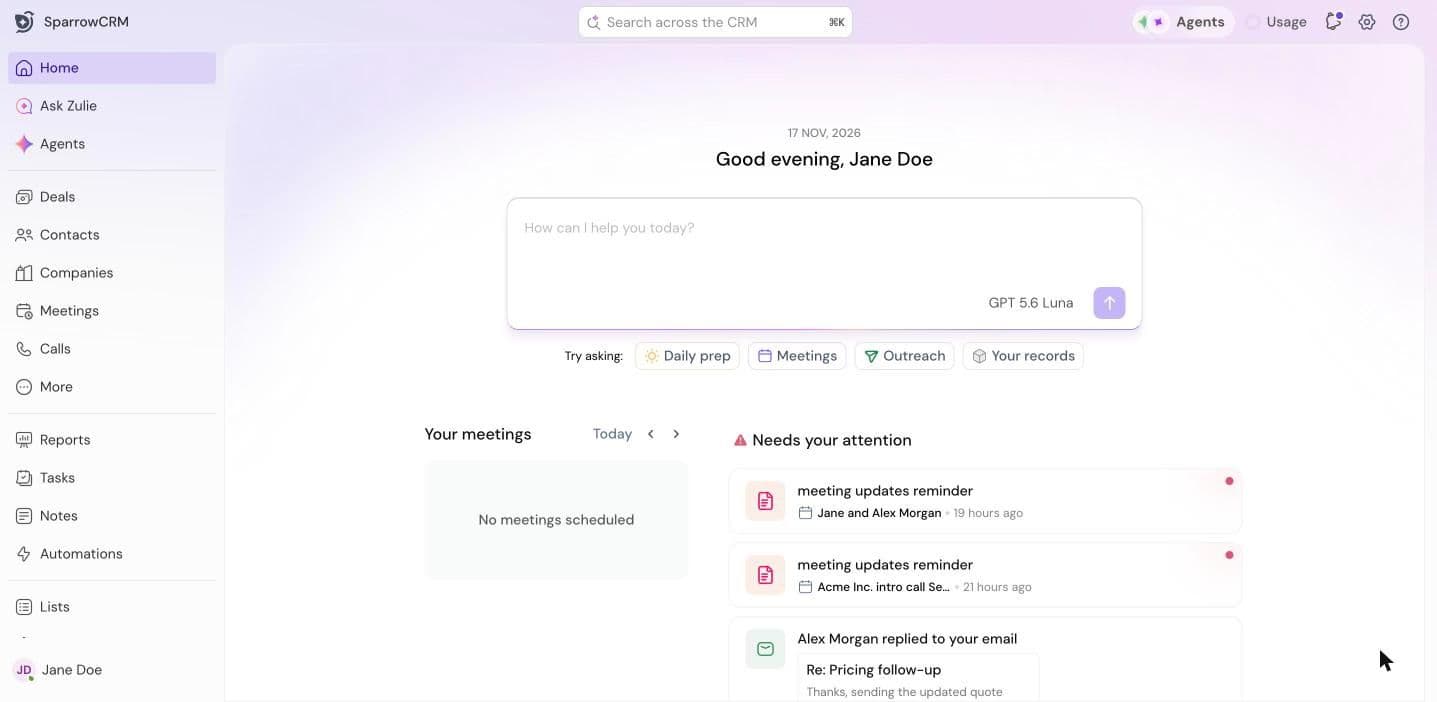
Home
Home is where you land when you sign in. From here you can:
- Ask Zulie a question in the box at the top, or pick a prompt under Try asking.
- See Your meetings for the day.
- Check Needs your attention for the items Zulie thinks you should look at first.
Left sidebar
- Home: your starting point.
- Ask Zulie: chat with Zulie about your records, pipeline and activity.
- Agents: Zulie's AI agents.
- Deals, Contacts, Companies: your records.
- Meetings, Calls: your conversations, with transcripts and AI summaries.
- More: items you've removed from the sidebar. Click Customize Sidebar to choose what shows.
- Reports: reports and dashboards.
- Tasks, Notes: your follow-ups and notes.
- Automations: workflows, sequences and Smart Router.
- Lists, Favorites: saved groups of records and the items you've starred.
Top bar
- Search across the CRM (⌘K): search records, ask Zulie a question, or run a quick action.
- Agents: quick access to your AI agents.
- Usage: see your remaining Zulie AI credits and enrichment credits.
- Notifications: updates and alerts.
- Settings (gear icon): your profile settings and account settings.
- Help (? icon): support chat, the help center, and this Get started guide.
Settings
Settings has two parts:
- Profile: your own settings, like email, calendar, notifications and connectors.
- Account: settings for the whole workspace, like users and teams, objects, calling, AI and billing. These are managed by Admins and Super Admins.
Next step
Set up your profile: connect your email and calendar, set your working hours, and choose your notifications.
Need help?
Reach out to us at [email protected].
Was this helpful?