
Connecting Gmail or Outlook
Connect your Gmail or Outlook inbox so your email conversations with contacts sync to SparrowCRM automatically. Each user connects their own inbox.
Connect your inbox
- Go to Settings > Email Settings.
- Click Connect Google Account (Gmail) or Connect Microsoft Account (Outlook), then sign in.
- Your inbox appears under Connected Accounts with the status In sync.
Past and future conversations with your CRM contacts now sync to their records. You can connect more than one inbox. One of them is labelled Default.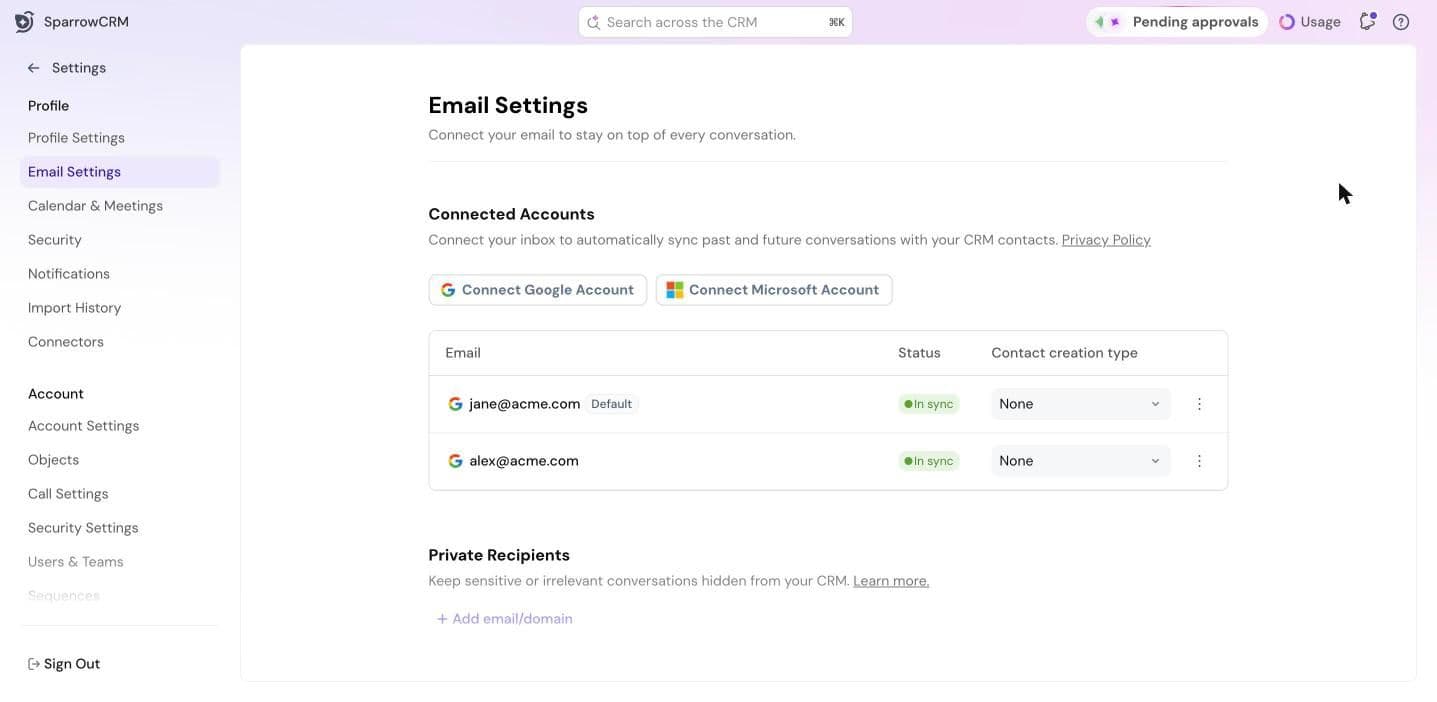
Choose whether emails create contacts
Next to each inbox, set Contact creation type:
- Engaged contacts: creates records only for people you've sent an email to.
- None: doesn't create records from email.
Keep conversations private
Under Private Recipients, click Add email/domain. Conversations with these addresses or domains stay out of your CRM.
Add a signature
Under Email Signatures, click Add signature. It's used in CRM and marketing emails.
Manage or remove an inbox
Click ⋮ next to an inbox:
- Resync aliases: picks up any new aliases on your email account.
- Remove mailbox: disconnects the inbox.
Email settings for your whole account
For Admins and Super Admins. Go to Settings > Account > Email.
- Allow users to create Contacts from email: turn this off to stop users creating contacts from their inbox.
- Private Recipients: click Add email/domain to keep addresses or domains out of the CRM for everyone. SparrowCRM may also suggest addresses from your own domain that could hold sensitive information. Click Add to list on one, or add them all to the Do not log list at once. Unless you add them, all emails are logged.
To see who has connected an inbox, go to Settings > Integrations and click ⋮ > View connected users on Gmail or Outlook.
If you're a rep, your admin manages these settings.
Connect your calendar
Your calendar is connected separately, in Settings > Calendar & Meetings. See Meeting Settings.
Was this helpful?