Setting up Calls
Plans: All plans
Access: All workspace members
Limits: Click-to-call on all plans. Call recording, transcription, and AI intelligence on paid plans. See the pricing page for full details.
Set up calling before making or receiving calls in SparrowCRM. Connect a calling provider, decide how calls are recorded and transcribed, and define the outcome tags used to log every call. Once set up, calls can be made directly from the Calls page or from any Contact, Deal, or Company record.
This article covers the initial setup. For how to actually make and log calls, see [Making and managing calls]. For AI-generated insights and call outcome tags, see [Call intelligence and outcome tags].
Where to set up Calls
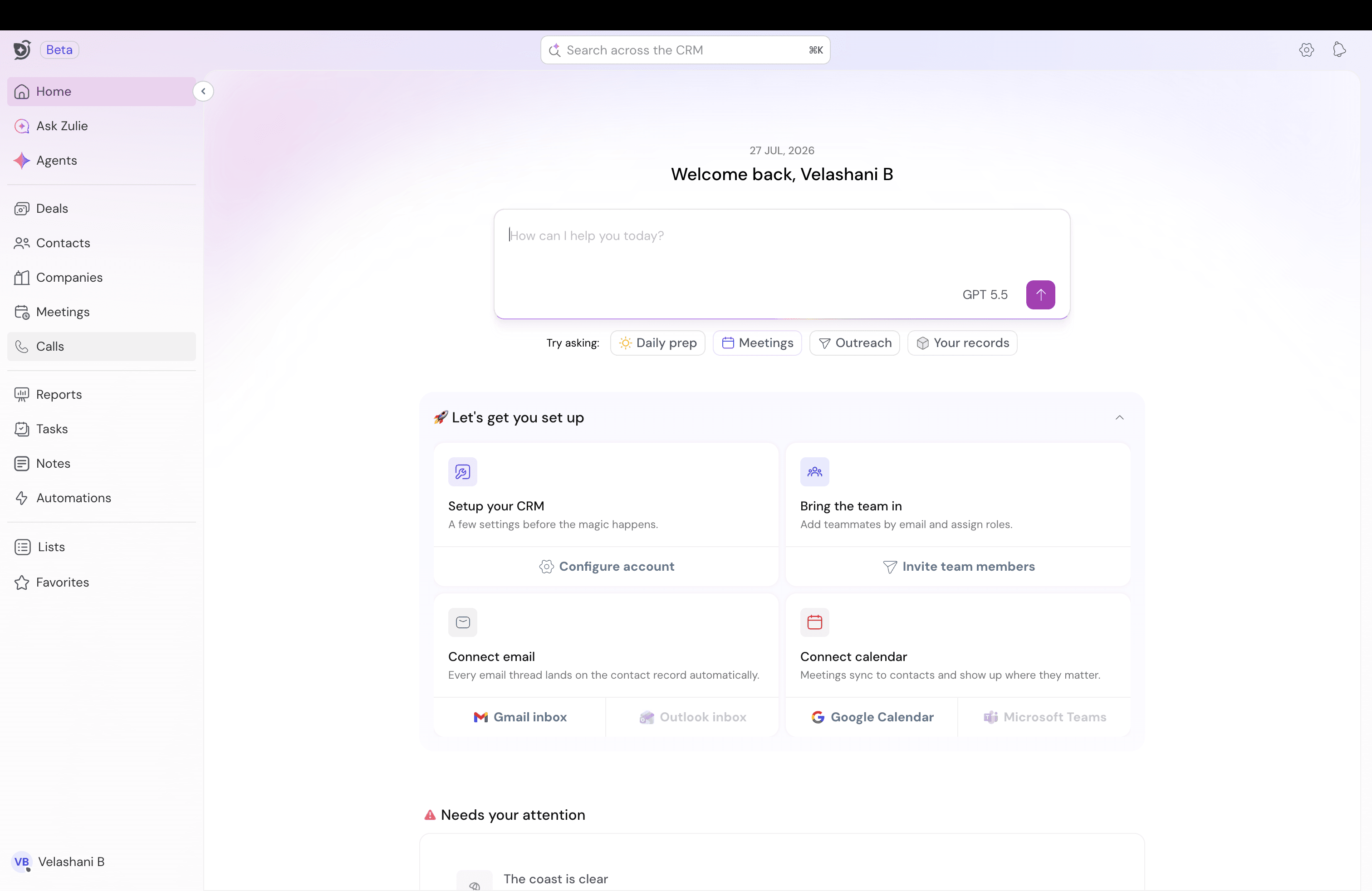
You can access calls from the left side navbar or
Go to Settings > Call settings.
Everything covered on this page lives here.
Connect a calling provider
To start making calls from SparrowCRM, connect a calling provider. SparrowCRM currently supports RingCentral. Aircall is coming soon.
Connecting RingCentral
- On the Call settings page, find the Connected apps section.
- Click RingCentral.
- Sign in through the OAuth flow and grant SparrowCRM access.
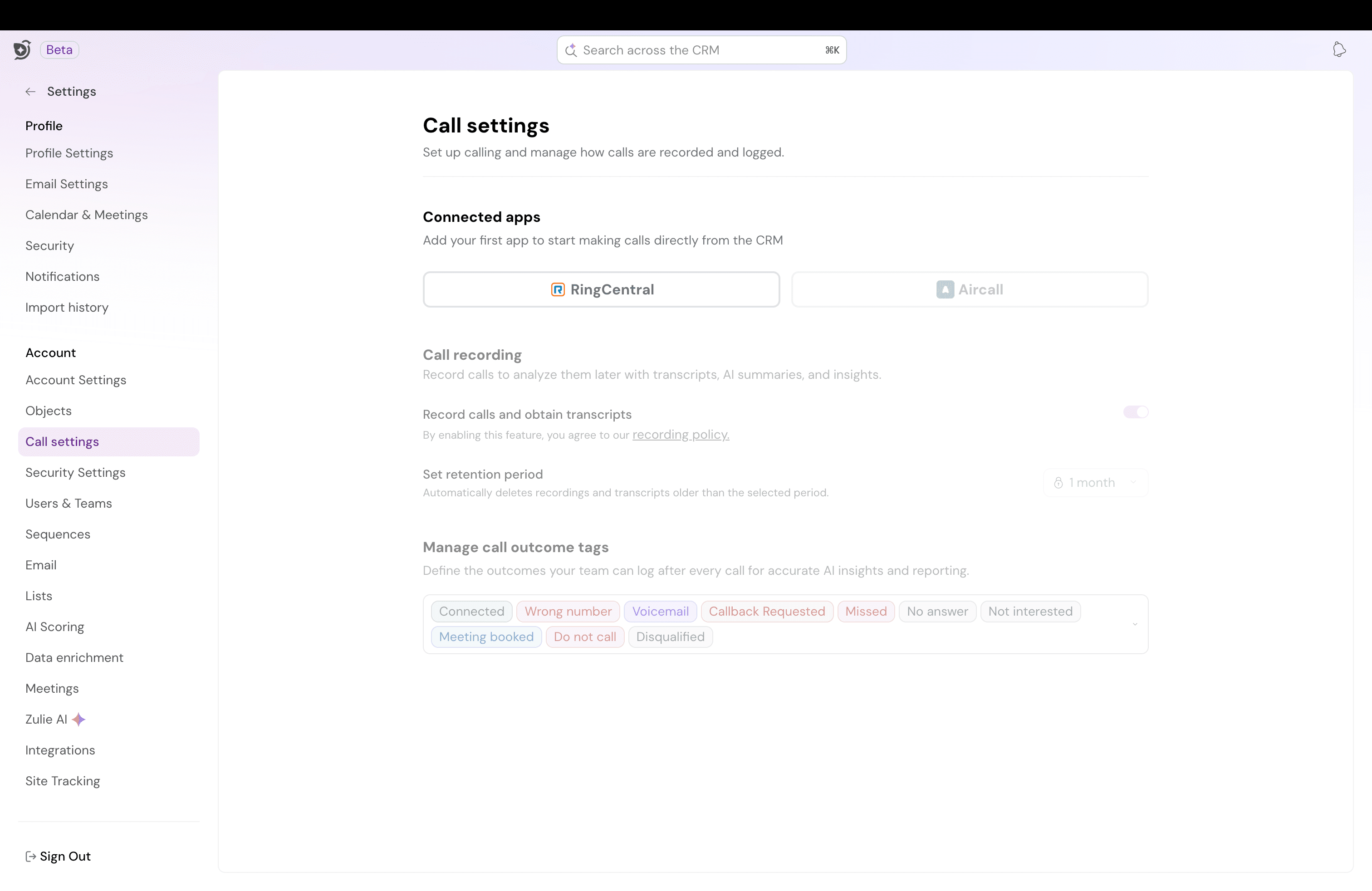
- Once connected, the RingCentral card shows the connection status, the workspace member who connected it, and the connection date.
Disconnecting a provider
To disconnect, click the three-dot menu on the connected provider card and select Disconnect. The provider is fully removed from the workspace.
Disconnecting stops future calls from being logged through that provider. To resume, reconnect the provider using the same steps.
Set up call recording and transcription
Once a provider is connected, decide how calls are recorded and transcribed.
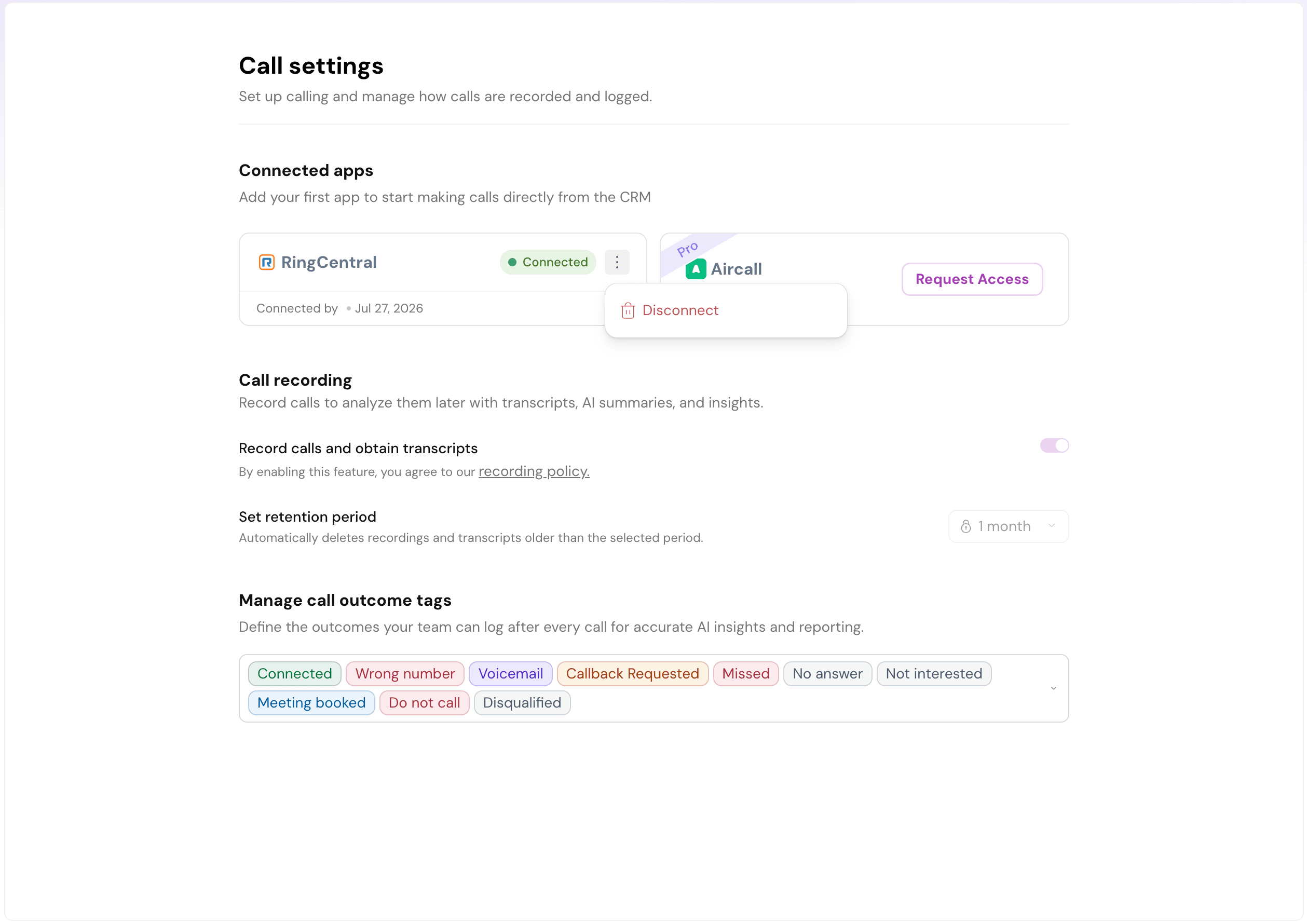
Record calls and obtain transcripts.
Toggle this on to record every call and generate a transcript. Recording and transcription are on by default when the toggle is enabled. Transcripts power AI Summary, key insights, and every downstream intelligence feature on the call record.
Enabling this feature means agreeing to the SparrowCRM privacy policy.
Set up call outcome tags
Every call ends with an outcome. Outcome tags let the team log what happened on each call in a consistent way, which powers reporting, filtering, and AI insights.
SparrowCRM ships with a default set of outcome tags:
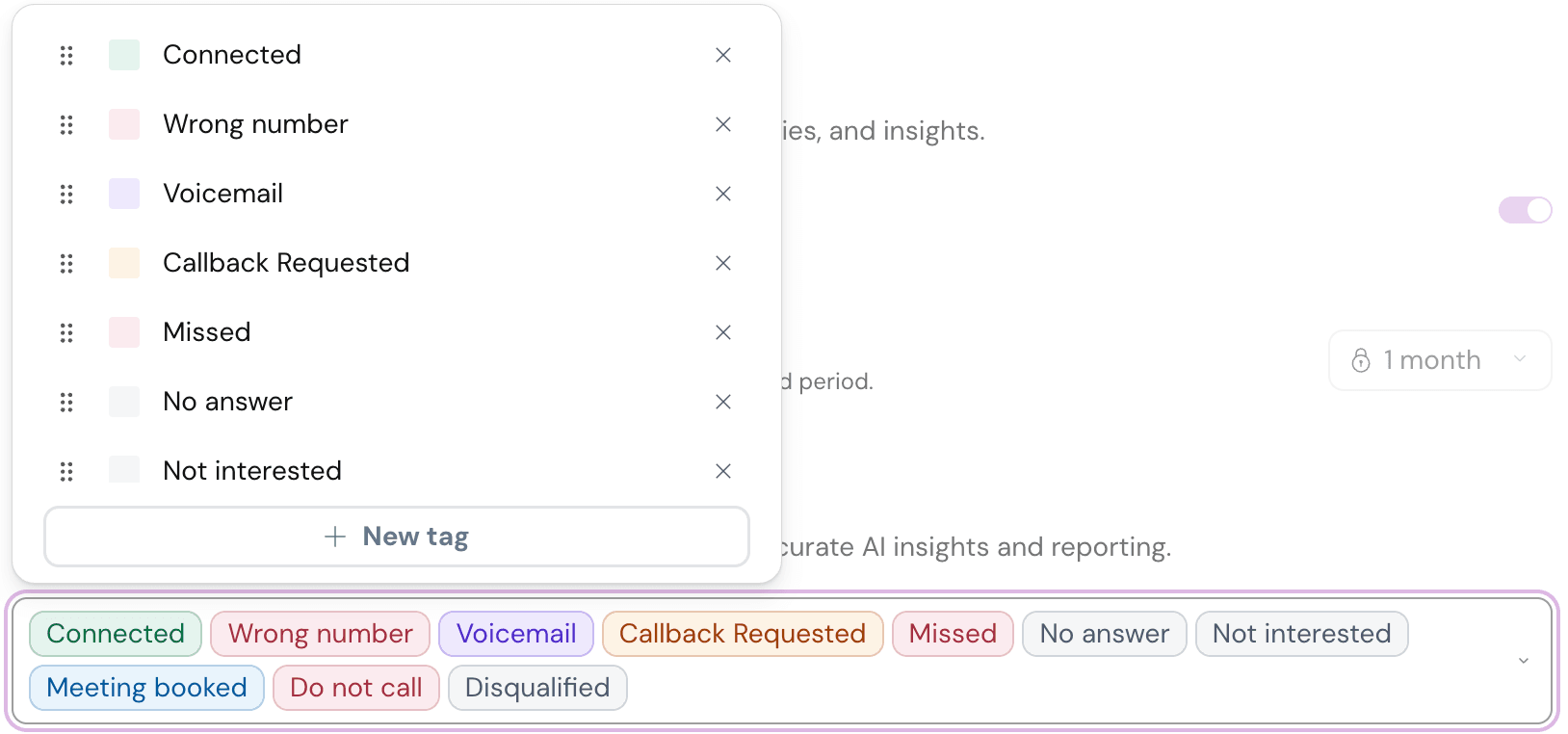
Connected, Wrong number, Voicemail, Callback Requested, Missed, No answer, Not interested, Meeting booked, Do not call, Disqualified.
Every tag has a color and can be renamed, reordered, or deleted. Custom tags can be created for any workflow the team needs. Common additions include:
- Left message (softer than Voicemail, used when a live message was left)
- Champion identified (used on discovery calls)
- Contract sent (for late-stage deals)
- Escalated to manager (for support-side calling)
- Do not contact (stronger than Do not call, applies across channels)
Adding a custom tag
- On the Call settings page, scroll to Manage call outcome tags.
- Click the tag list to open the tag editor.
- Click + New tag at the bottom of the list.
- Enter the tag name and pick a color.
Reordering or deleting tags
- Drag the handle on the left of a tag to reorder it. Tag order controls how tags appear in the outcome dropdown after a call.
- Click the X on a tag to delete it. If any calls are currently tagged with it, they'll show the deleted tag until it's re-tagged.
For how outcome tags power AI intelligence, filters, and reporting, see Call intelligence.
What happens after setup
Once a provider is connected, recording is configured, and outcome tags are set up, calls can be initiated from:
- The Calls page (via the New Call button)
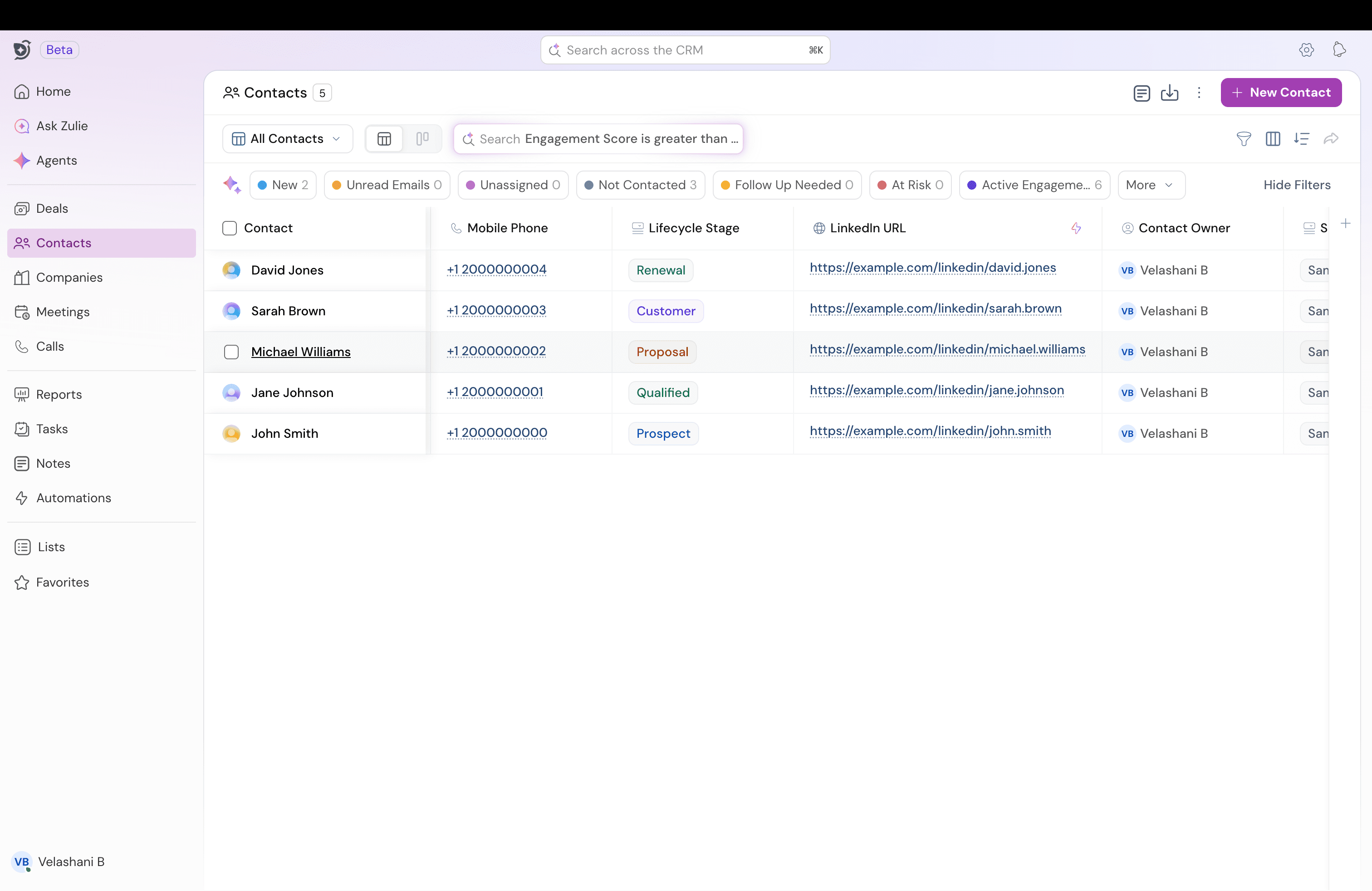
- Any Contact, Deal, or Company record page
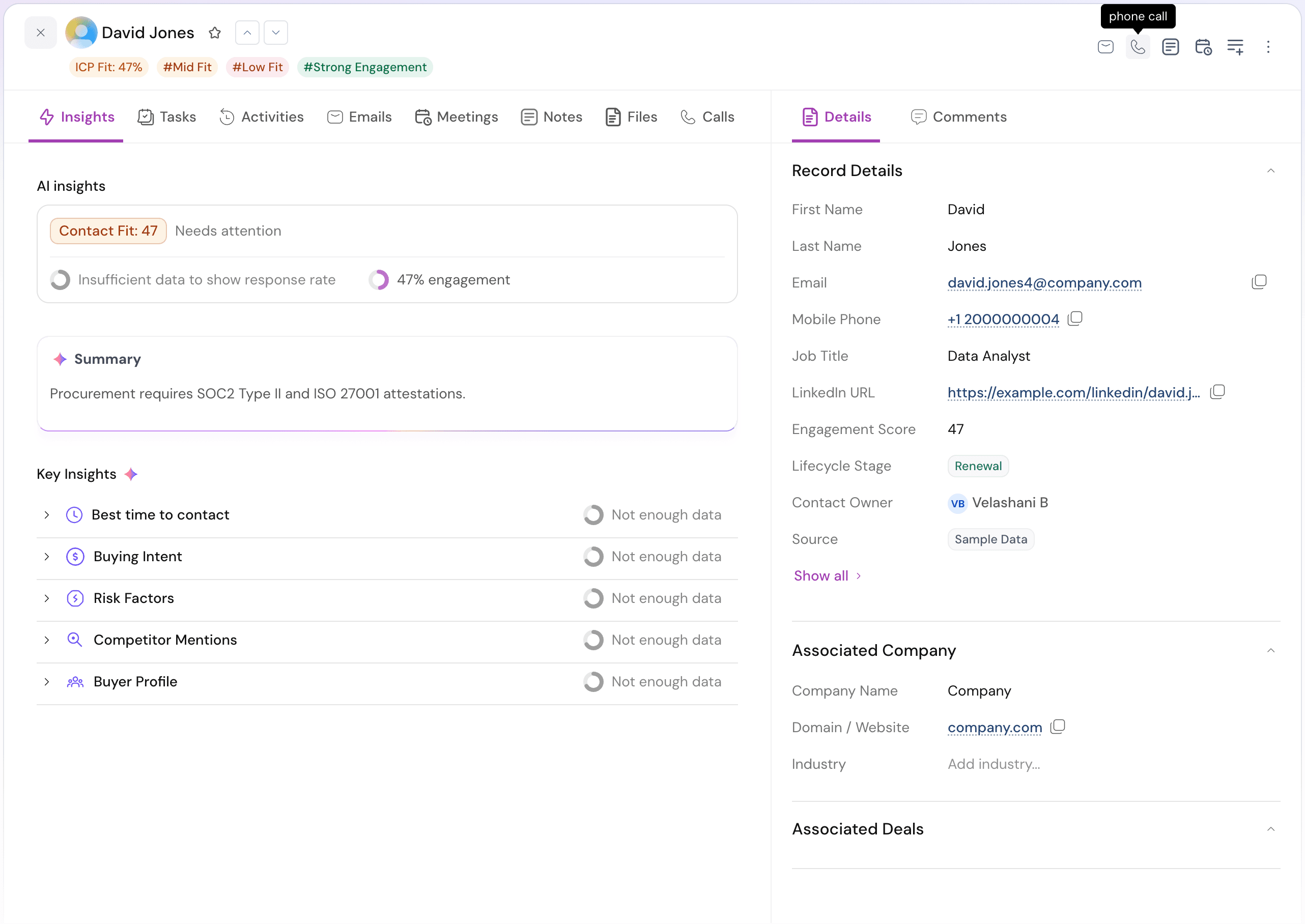
Every call made through a connected provider automatically shows up in the Calls list, gets recorded and transcribed (if enabled), and is available to log an outcome tag against.
For how to actually place calls, log outcomes, and work with the calls list, see Making and managing calls.
Need help? Reach out to us at [email protected].