Set up your profile
Set up your own settings before you start: connect your email and calendar, set your working hours, and choose how you get notifications. Zulie uses your email and calendar to build summaries, insights and next steps.
All of these are under Settings (gear icon in the top bar), in the Profile section.
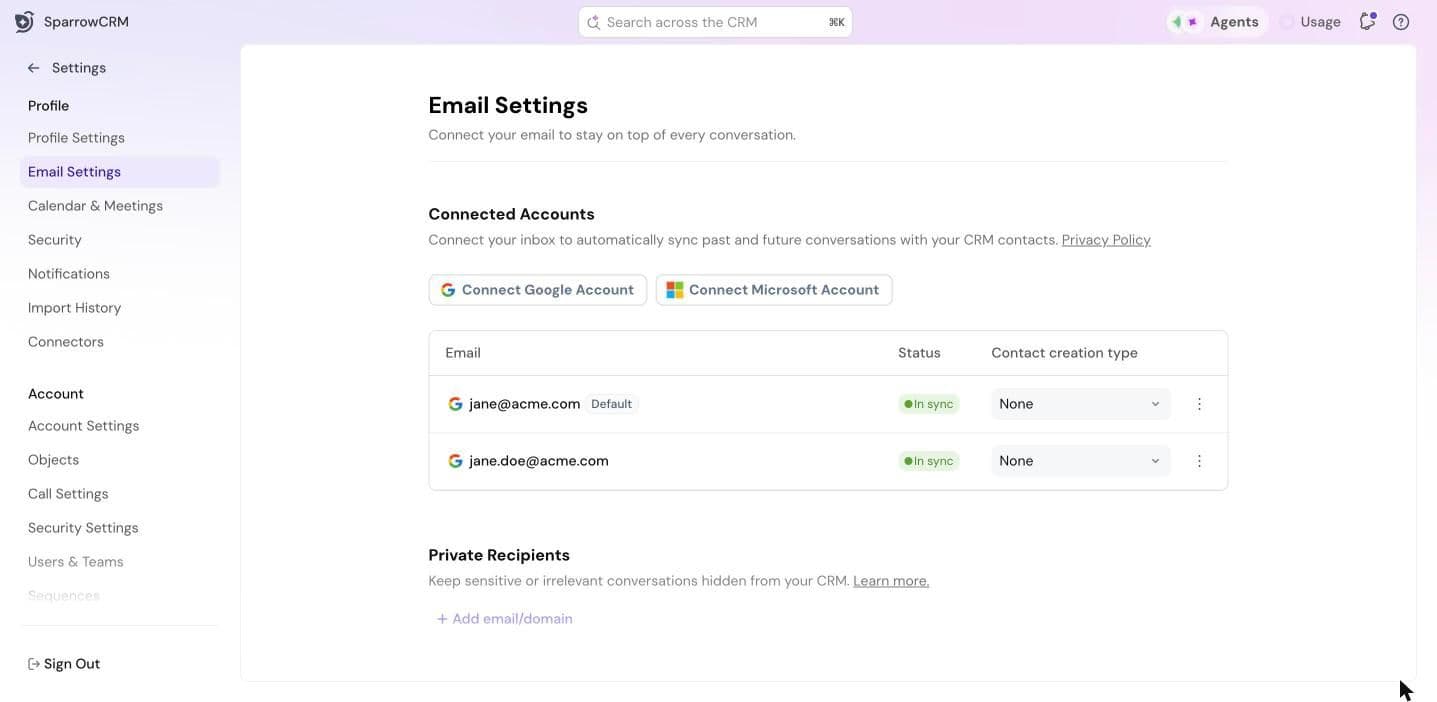
Connect your email
- Go to Settings > Email Settings.
- Click Connect Google Account or Connect Microsoft Account, then sign in.
Your mailbox appears under Connected Accounts with the status In sync. Past and future conversations with your CRM contacts sync automatically.
On the same page, you can also:
- Choose whether email creates contacts: set Contact creation type to Engaged contacts (creates records only for people you've emailed) or None.
- Keep conversations private: under Private Recipients, click Add email/domain. Conversations with these stay out of your CRM.
- Add a signature: under Email Signatures, click Add signature. It's used in CRM and marketing emails.
- Manage a mailbox: click ⋮ next to it to Resync aliases or Remove mailbox.
Connect your calendar
- Go to Settings > Calendar & Meetings.
- Click Connect Google Account or Connect Microsoft Account, then sign in.
- Under Meeting sync, choose All meetings or Only external meetings (skips meetings where everyone is from your organization).
Meeting sync only controls which meetings come into SparrowCRM. Which meetings are recorded and analyzed is set by your admin.
For appointment links, video conferencing apps and reminders, see Meeting Settings.
Set your timezone and working hours
Your working hours control when you receive communications.
- Go to Settings > Profile Settings.
- Under Working Hours, pick your Timezone.
- Set your days and hours. Click Add hours to add another time block.
- To mark days you're away, click Add dates under Out of Office.
- Click Save Changes.
Connect Slack and choose your notifications
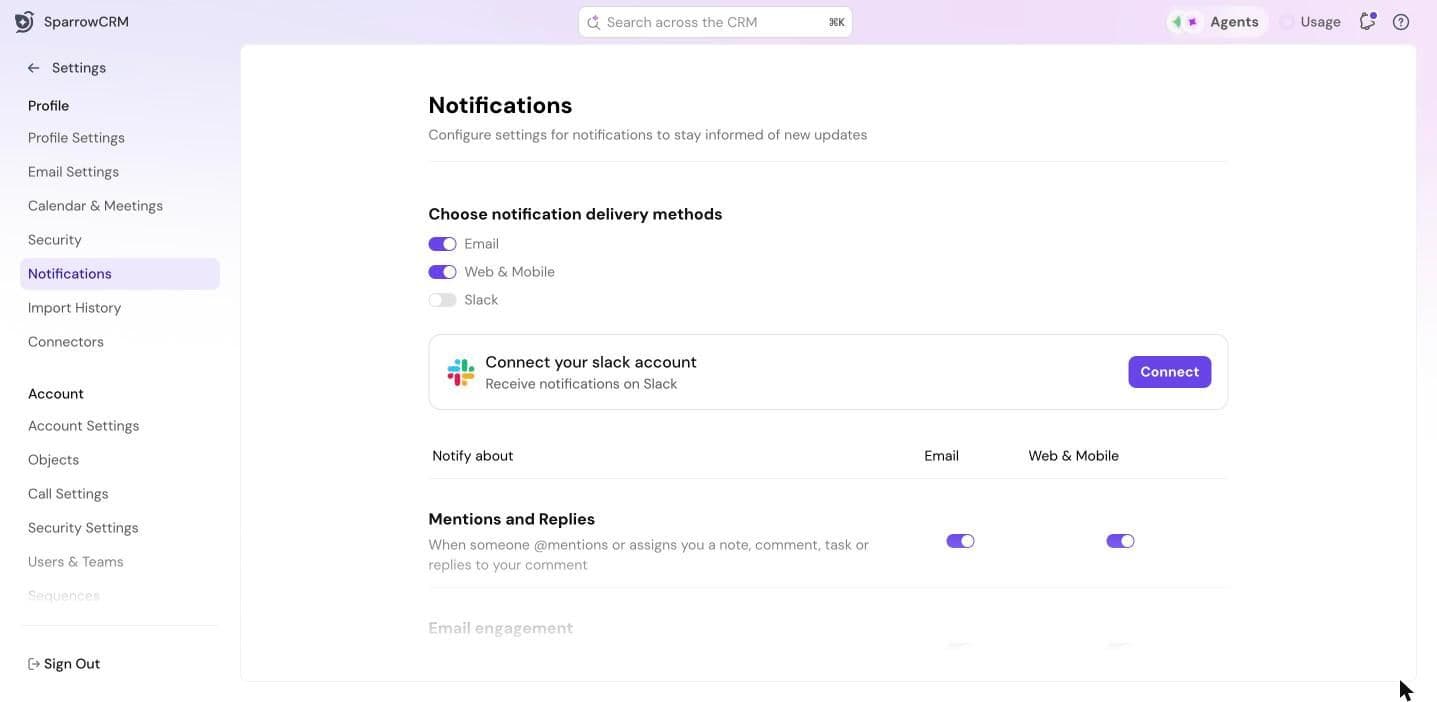
- Go to Settings > Notifications.
- Next to Connect your slack account, click Connect and follow the prompts.
- Under Choose notification delivery methods, turn on Slack, Email or Web & Mobile.
- Under Notify about, turn each type of update on or off, such as mentions and replies, meeting updates, task updates and your daily task digest.
Next step
Import your data.
Need help?
Reach out to us at [email protected].
Was this helpful?