
Roles and permissions in SparrowCRM
For Admins and Super Admins. If you're a rep, your admin chooses your role.
A role decides what a user can see and do in SparrowCRM. Every user has one role. You can use the four default roles or create your own.
To add users and teams, see Inviting users and creating teams.
Default roles
Go to Settings > Users & Teams > Roles. Each role shows the areas it has access to and who's assigned to it.
- Super Admin: access to every area, including Custom Objects, Integrations and Account Settings.
- Admin: the same areas as Super Admin, except Custom Objects.
- Team Manager: Contacts, Deals, Companies, Meetings, Calls, Reporting & Analytics, Sequences, Workflows, Tasks, Notes, Users & Permissions, Smart Router, and AI Features & Agents.
- Standard User: Contacts, Deals, Companies, Meetings, Calls, Reporting & Analytics, Sequences, Workflows, Tasks, Notes, and AI Features & Agents.
Default roles can be edited, but not deleted.
How permissions work
Open a role to see its permissions. The areas are listed on the left: Objects (Contacts, Deals, Companies, Meetings, Calls), Reporting & Analytics, Sequences, Workflows, Tasks, Notes, Users & Permissions, Integrations, Smart Router, Account Settings and AI Features & Agents. Use the search box to find a permission.
For each area, switch individual permissions on or off. For example, for Contacts:
- Create Contacts and Import records: on or off.
- View, Edit and Delete & Restore: choose how many records the user can act on.
- Configure object settings: edit and create fields, object defaults and layouts.
- Email access: view or delete emails on records.
- Danger zone: permanently delete records.
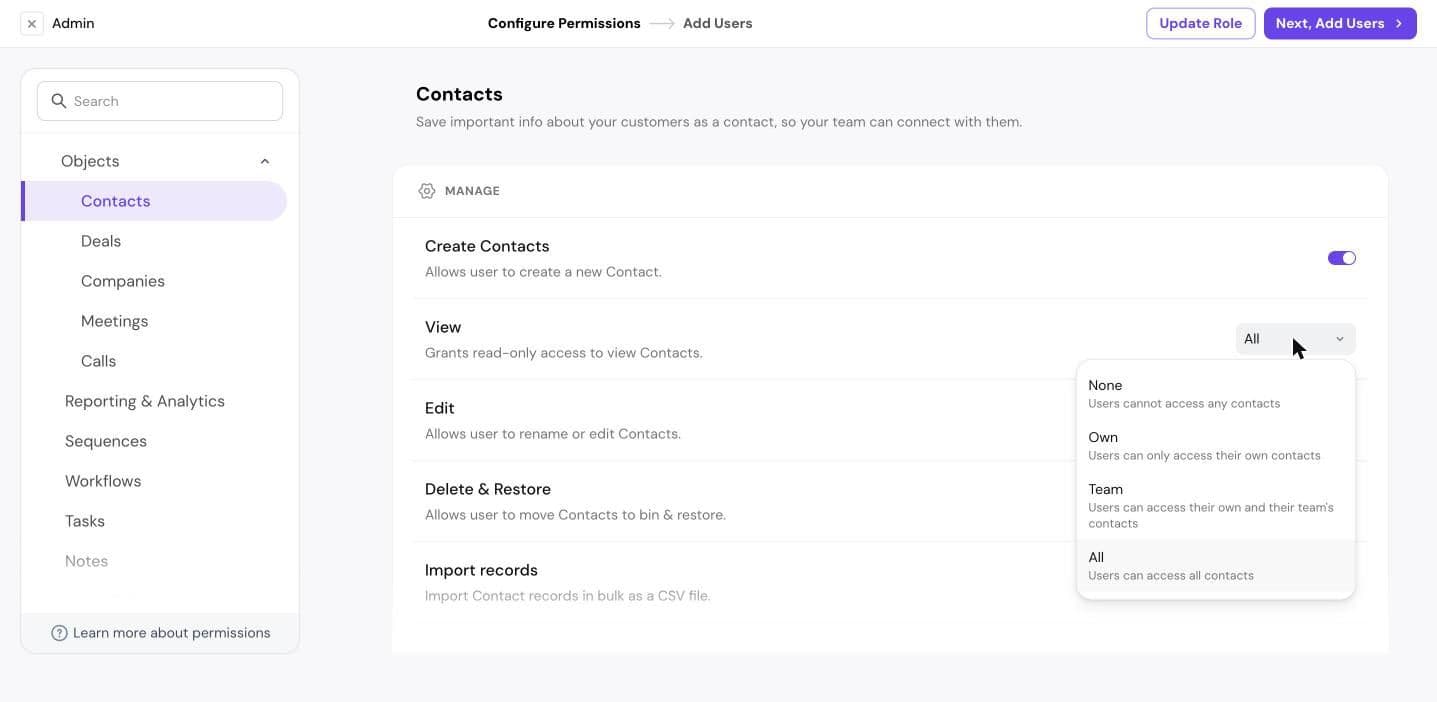
Choose how many records a user can access
- None: no access.
- Own: only their own records.
- Team: their own records and their team's records.
- All: every record.
For example, set View to Team so a manager sees their team's deals, and set Edit to Own so reps only change deals they own.
Create a role
- On the Roles tab, click New Role.
- Enter a Role Name and click Create & Add Permissions.
- Set the permissions for each area.
- Click Next, Add Users to assign people to the role.
Manage a role
Hover over a role and click ⋮:
- View Assigned Users: see who has this role.
- Edit Role: change its permissions, then click Update Role.
- Delete Role: remove a role you created.
To change one person's role, edit the user on the Users tab.
Need help?
Reach out to us at [email protected].
Was this helpful?