
Installing and connecting Aircall with SparrowCRM
Overview
The Aircall integration lets your team call contacts straight from SparrowCRM using their Aircall numbers. Every call made or received on a connected Aircall number is logged in SparrowCRM automatically. It's linked to the right contact (and that contact's company and deals), and includes the recording, transcript and an AI summary when recording is turned on.
Setting it up takes three steps:
- An admin connects Aircall once for the whole company (Call Settings → Aircall → Connect).
- The Aircall admin adds the team's numbers to the SparrowCRM integration in Aircall and turns on call recording.
- Each agent connects from Call Settings and signs in to the Aircall phone inside SparrowCRM.
This article uses two kinds of admin:
Who | What they are | What they do in this setup |
SparrowCRM Super Admin | A SparrowCRM user with the Super Admin role | Makes the very first Aircall connection for the company |
Aircall admin | An Admin in your Aircall account. The one who installs SparrowCRM in Aircall also approves logins | Adds numbers to SparrowCRM, turns on recording and approves agents whose Aircall email doesn't match |
The first connection must be made by someone who is both: a SparrowCRM Super Admin who is also an Aircall admin.
Everyone else who makes or takes calls is an agent in this article.
Before you start
Check these before connecting:
- Your SparrowCRM plan includes Aircall. If the Aircall card in Call Settings shows Request Access instead of Connect, your plan doesn't include it yet. Ask your account owner to request access or upgrade.
- You have an Aircall account with at least one phone number, and at least one Aircall Admin.
- The right people have the right SparrowCRM permissions:
To do this | You need |
Make the first Aircall connection for the company | The Super Admin role in SparrowCRM, and Admin rights in Aircall |
Open Call Settings (where Connect lives) | Access to Call Settings in your role |
Connect yourself and make or receive logged calls | The Calls → Enable permission in your role |
Change call outcome tags or recording settings | Edit access to Call Settings |
Disconnect Aircall for the whole company | Permission to disconnect integrations |
Unblocking agents: the default Team Manager and Standard User roles don't include Call Settings access, so agents with those roles can't see the Connect button. A Super Admin can add Call Settings access and the Calls → Enable permission to their role in Settings → Users & Teams → Roles.
For admins: connect Aircall to SparrowCRM
You only do this once for the whole company. It must be done by a SparrowCRM Super Admin who is also an Aircall admin.
- Sign in to SparrowCRM.
- Go to Settings → Account → Call Settings.
- Under Connected apps, find the Aircall card and click Connect.
- Aircall opens in the same tab. Sign in with your Aircall admin account and authorise SparrowCRM. If Aircall asks which numbers to connect, select the numbers your team calls from. You can change this later; see Link numbers and approve team members below.
- You're brought back to Call Settings. The Aircall card now shows Connected and Connected by your name.
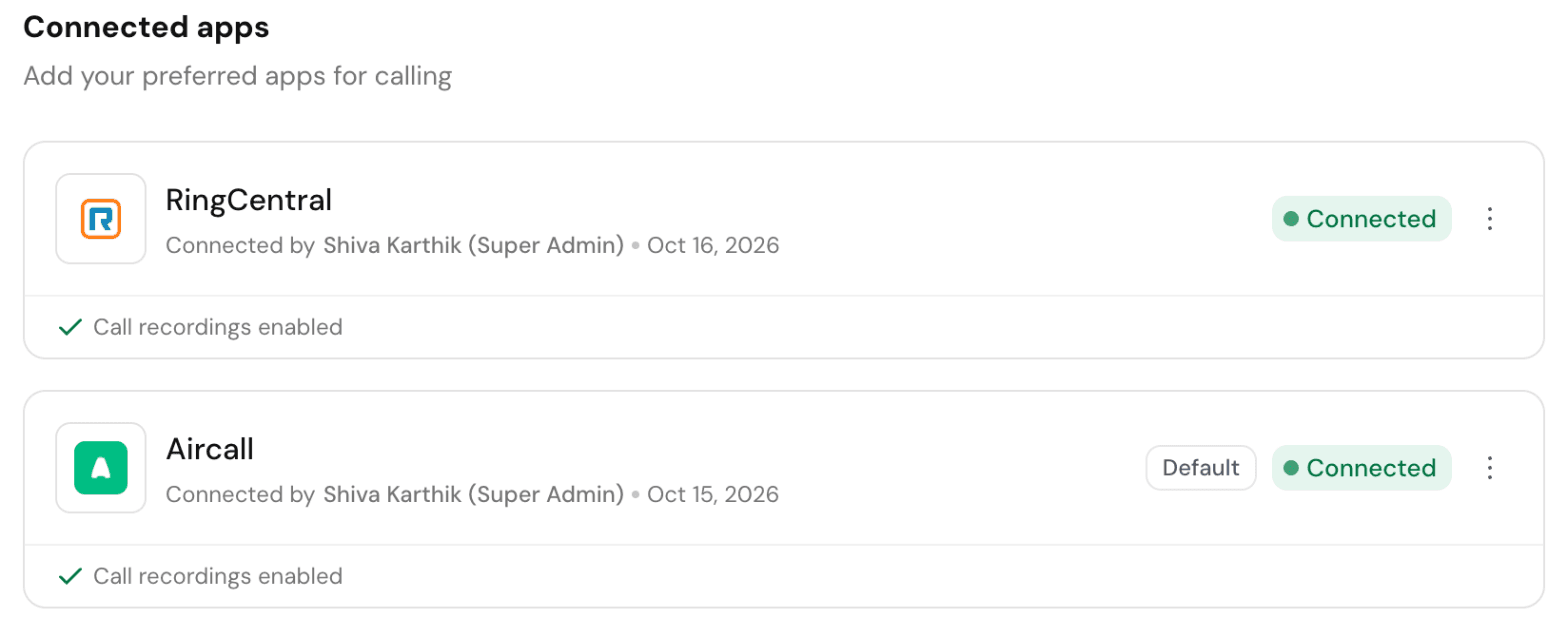
Call Settings → Connected apps after connecting: Aircall shows Connected, Connected by, the Default chip and its recording status.
What happens behind the scenes:
- SparrowCRM registers itself with Aircall to receive call events, so calls on connected numbers are logged automatically.
- You're the company's Aircall approver, because you installed SparrowCRM in Aircall. From now on, you're the person who can add numbers, turn on recording and approve team members from Call Settings.
If you see "Calling app not set up yet", the person who clicked Connect isn't both a SparrowCRM Super Admin and an Aircall admin. Ask someone who is to make the first connection.
Once the company is connected, each agent connects themselves; see For agents below.
Make Aircall your default calling app
The first calling app you connect becomes your default automatically. If you've also connected RingCentral, choose which one SparrowCRM uses for your calls:
- Go to Settings → Account → Call Settings.
- On the Aircall card, open the ⋮ menu and click Set as default.
- You'll see "Aircall is now your default calling app", and the card shows a Default chip.
The default is set per user: each person chooses their own.
When Aircall is your default, the Call recording section further down Call Settings is greyed out. That's expected: Aircall controls recording for Aircall calls. To turn recording on, see Call recording below.
For admins: link numbers and approve team members
Add Aircall numbers to SparrowCRM
SparrowCRM only logs calls on numbers that are connected to the SparrowCRM integration in Aircall. When a number isn't connected, the Aircall card in Call Settings tells you:
- "Your numbers aren't linked to SparrowCRM, so calls won't be logged." This is about your own number.
- "Some users' numbers aren't linked to SparrowCRM, so their calls won't be logged." This is followed by the list of team members it affects; only the Aircall approver sees it.
To fix it (Aircall admin):
- In Call Settings, click Connect next to the message. The SparrowCRM integration page opens in your Aircall Dashboard.
- Add the missing numbers to the integration and save.
- Come back to SparrowCRM and refresh Call Settings. The message disappears once the numbers are connected.
If you're not the Aircall admin, you'll see "Contact your Aircall admin." instead of the Connect link. Send them the list of users above.
Which number an agent calls from
Outgoing calls use the agent's default number in Aircall, as long as that number is connected to SparrowCRM. If it isn't, SparrowCRM uses the first of the agent's Aircall numbers that is connected. To change which number an agent calls from, change their default number in Aircall or connect it to SparrowCRM.
Approve an agent whose Aircall email doesn't match
When an agent signs in to the Aircall phone with an email that's different from their SparrowCRM email, SparrowCRM doesn't link it automatically; it asks the Aircall approver first. You'll see this on the Aircall card in Call Settings:
[Agent name] signed in with a mismatched email. Signed in to Aircall as [their Aircall login], which doesn't match their SparrowCRM email. Want to log their calls? Approve · Reject
- Approve links that Aircall login to the agent. Their calls are logged from then on.
- Reject keeps them unlinked. They'll need to sign in to Aircall with the account that matches their SparrowCRM email.
Only the Aircall admin who installed SparrowCRM in Aircall can approve or reject. That person must also be connected to Aircall in SparrowCRM.
For agents: connect and sign in to Aircall
Before you start, make sure your admin has:
- connected Aircall for the company,
- given your role Call Settings access and the Calls → Enable permission, and
- connected your Aircall number to SparrowCRM.
Step 1: Connect from Call Settings
- Go to Settings → Account → Call Settings.
- The Aircall card says "Join your company's Aircall". Click Connect.
- That's it; you don't need to sign in to Aircall for this step. You're joined to your company's Aircall connection.
Step 2: Sign in to the Aircall phone inside SparrowCRM
- Click the phone icon to open the call panel. The Aircall phone loads inside it.
- Sign in with your own Aircall account.
- SparrowCRM links your Aircall login to your SparrowCRM user:
- Same email in both: you're linked straight away and can start calling.
- Different email: you'll see "You're signed in to Aircall as [your Aircall login], which doesn't match your SparrowCRM email. We've asked your Aircall admin to approve it." Until they approve, the panel shows "Your Aircall admin hasn't approved this Aircall login yet. You can call once they approve it."
- Your SparrowCRM user is already linked to a different Aircall user: you'll see "You're signed in to Aircall as [A], but your CRM account is linked to [B]. Sign in to Aircall as [B] to call." Sign out of the Aircall phone and sign in with the linked account.
Tip: keep the Aircall phone signed in and your Aircall status set to available while you work. Aircall only starts calls and rings you when you're available.
Call recording
Recordings unlock the best parts of the integration: transcripts, AI call summaries and call insights. With Aircall, Aircall records the call and SparrowCRM collects the recording once the call ends.
Why the Call recording section is greyed out
When Aircall is your default calling app, the Call recording section in Call Settings is greyed out, including Record calls and obtain transcripts and the retention period. Nothing is broken: those settings are for RingCentral. For Aircall, recording is switched on per number in Aircall.
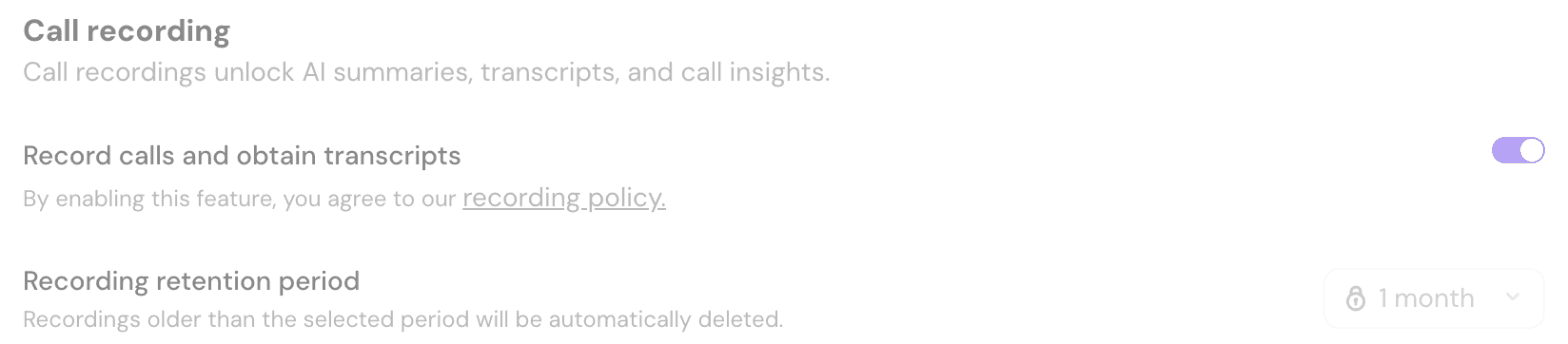
With Aircall as the default app, the Call recording section is greyed out. Recording is managed in Aircall.
Check the recording status
The Aircall card in Call Settings shows the recording status of your calling number:
Status | What it means |
Call recordings enabled | Inbound and outbound calls are recorded automatically |
Call recordings aren't automatic for every call. | At least one direction is set to manual (the agent has to press record) or off |
Call recordings are disabled. | Recording is off for this number |
For admins: turn recording on (Aircall admin)
- Go to Settings → Account → Call Settings.
- On the Aircall card, click Enable in Aircall next to the recording status. The number's settings open in your Aircall Dashboard.
- Set call recording to automatic for both inbound and outbound calls, then save.
- Back in SparrowCRM, refresh Call Settings. The status changes to Call recordings enabled.
- Repeat for every number your team calls from. The link opens your own calling number, so open the others from Numbers in the Aircall Dashboard.
For agents
- If you see "Contact your Aircall admin to enable.", recording is off or manual for your number. Only an Aircall admin can change it, so ask them to follow the steps above.
- If recording is set to manual, press record in the Aircall phone during the call to capture it.
Recording retention period: choosing how long recordings and transcripts are kept is available on higher plans. If you see Request Access next to it, ask your account owner.
Disconnect or remove Aircall
All of these are in the ⋮ menu on the Aircall card in Settings → Account → Call Settings.

The ⋮ menu on the Aircall card. Set as default appears here when Aircall isn't your default yet.
Remove it for yourself: click Remove Integration. Your calls stop being logged; everyone else keeps working. If you're the last person connected, SparrowCRM warns you: "You're the last person connected. This turns off Aircall for your company, and an Aircall admin will need to reconnect."
Disconnect it for everyone (needs permission to disconnect integrations): click Disconnect Aircall for everyone and confirm. This disconnects every user in your account and stops call logging. An Aircall admin will need to reconnect before anyone can use it again.
Reconnect needed: if Aircall access is revoked, for example the app was removed in the Aircall Dashboard, the card shows Reconnect needed. An Aircall admin clicks Reconnect to restore it.
Troubleshooting setup
You see | Why | What to do |
Request Access on the Aircall card | Your plan doesn't include Aircall | Ask your account owner to request access or upgrade |
Calling app not set up yet | Nobody has made the company's first connection, and you're not both a Super Admin and an Aircall admin | Ask a SparrowCRM Super Admin who is also an Aircall admin to click Connect first |
No Call Settings in the Settings menu | Your role has no Call Settings access | Ask a Super Admin to add it to your role |
Connect isn't available to you | Your role lacks the Calls → Enable permission | Ask a Super Admin to add it to your role |
"Sign in to the Aircall phone in the call panel to finish setting up Aircall." | You're connected but haven't signed in to the Aircall phone yet |
Was this helpful?